


1.Introduction:
In 2026, mastering Yoast SEO in WordPress has become essential for anyone who wants to rank higher on Google and drive consistent organic traffic. Whether you’re a beginner blogger, small business owner, or digital marketer, understanding how to properly use the Yoast SEO plugin can significantly improve your website’s visibility.
With the latest updates to the Yoast SEO interface (2026 UI), the plugin is now more intuitive, AI-assisted, and focused on real-time content optimization. From on-page SEO analysis and keyword optimization to readability checks, meta tags, and XML sitemaps, Yoast SEO provides all the essential tools needed to optimize your WordPress site effectively.

By the end of this guide, you’ll not only understand how Yoast SEO works but also how to use it strategically to boost your search engine rankings, increase organic traffic, and build a strong SEO foundation for your WordPress website.
2.What is Yoast SEO?
Yoast SEO is a popular plugin used mainly with WordPress to help optimize websites for search engines like Google.
What it does:
Yoast SEO helps website owners improve how their pages appear in search results and rank higher by guiding them through SEO best practices.
Key features:
- On-page SEO analysis – Gives suggestions to improve content (keywords, headings, readability).
- Readability check – Ensures your content is easy to read.
- Meta tags control – Lets you edit titles and descriptions shown on search engines.
- XML sitemap generation – Automatically creates sitemaps for better indexing.
- Breadcrumbs control – Improves site navigation and SEO structure.
In simple terms:
Yoast SEO acts like a personal SEO assistant, giving real-time tips to make your website more search-engine friendly.
3.Yoast SEO Free vs Premium
A. Yoast SEO FREE (Best for beginners)
Good if you are just starting a blog or website.
What you get:
- Basic SEO suggestions (keywords, headings, readability)
- Optimize 1 keyword per page
- Meta title & description editing
- XML sitemap (automatic)
- Works well for small websites
Limitations:
- No automatic internal linking suggestions
- No redirect manager (broken links need manual fixing)
- No social media preview
- No advanced SEO tools or support
- You must do most SEO work manually
Best for:
Beginners, students, small blogs
B. Yoast SEO PREMIUM (Advanced & time-saving)
Good if you want faster results and advanced tools.
Extra features:
- Optimize multiple keywords (up to 5)
- Internal linking suggestions (automatic)
- Redirect manager (fix broken links easily)
- Social media preview (Facebook, Twitter)
- AI suggestions for SEO (titles, content)
- 24/7 support
- Includes Local, News, and Video SEO tools
Why it’s better:
- Saves time
- More automation
- Better for bigger or professional websites
Cost: about $99/year (approx.)
4.How to Install Yoast SEO Plugin
To install Yoast SEO plugin you need to follow simple steps :
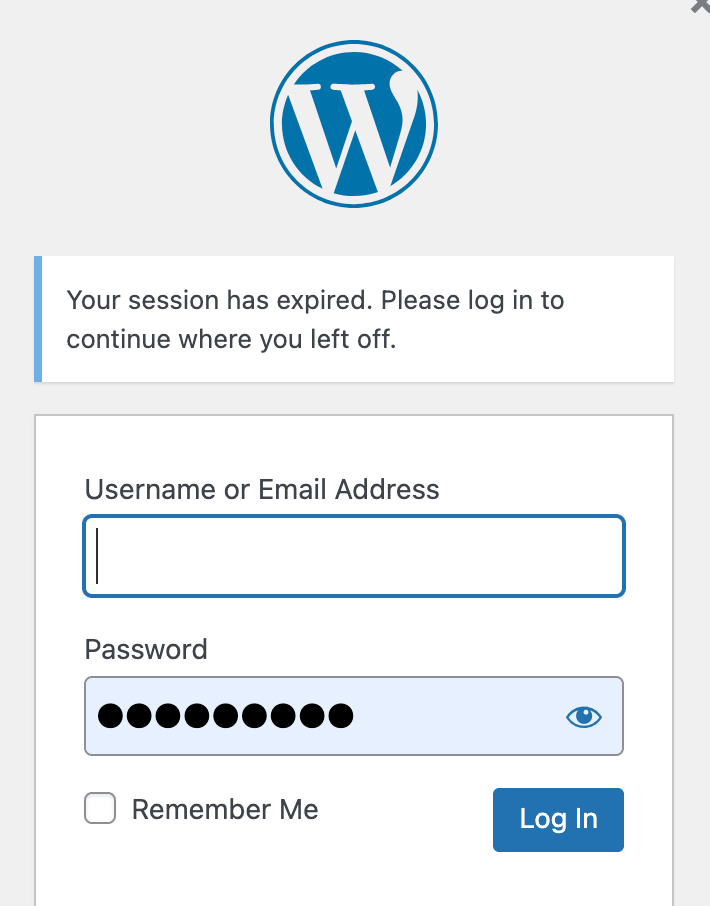
1.To begin with, log in to your WordPress dashboard using your username and password.
2.Next, navigate to the left sidebar, then go to Plugins and click on Add New.
3.After that, type “Yoast SEO” in the search bar and find the official plugin.
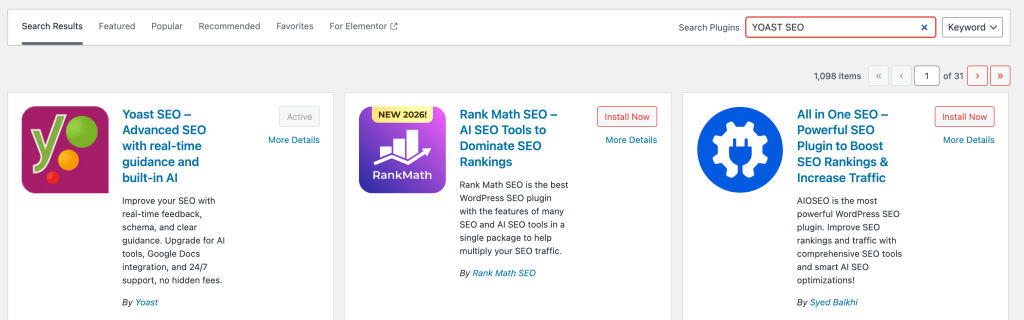
4.Finally, click Install Now, and once it is installed, press Activate to enable the plugin on your website.
5.Yoast SEO Key Features Overview:
A) General
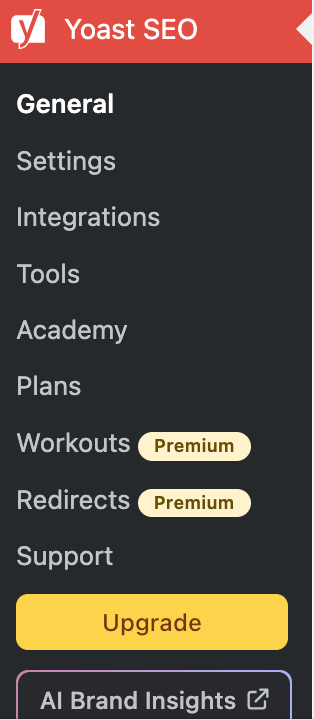
The General Settings in Yoast SEO allow users to configure essential features of the plugin, including site preferences, SEO tools, and webmaster integrations. First of all, it helps you set up the basic SEO configuration for your website. In addition, it ensures your site is properly connected with search engines and webmaster tools. As a result, it serves as a strong starting point for optimizing a WordPress website for better search engine visibility.
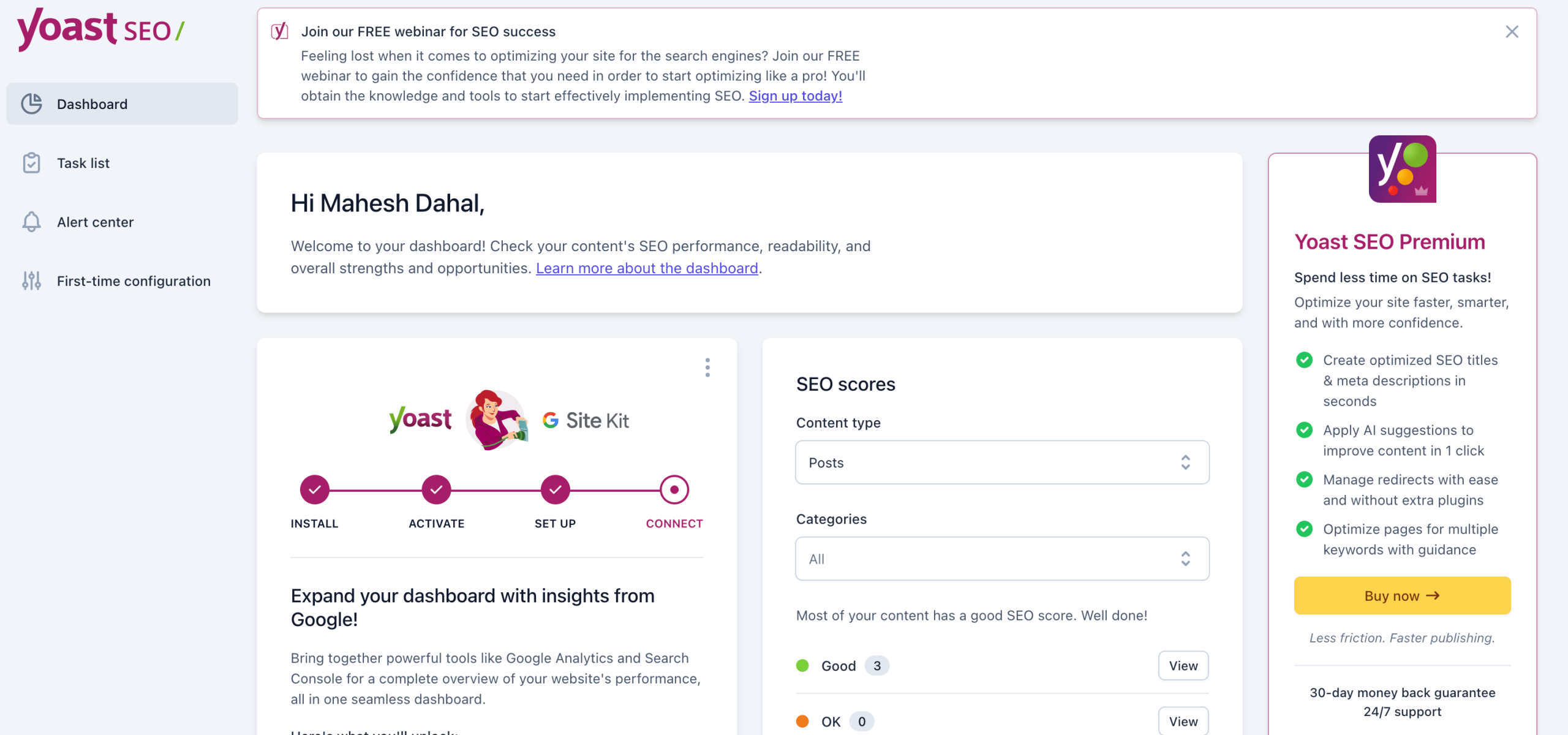
When you enter in General section you will get to see like this:
a) Dashboard:
The General Dashboard in Yoast SEO provides an overview of your website’s SEO performance and setup progress.
It mainly helps you with:
- SEO Score: Shows how well your content is optimized for search engines
- Readability Score: Checks how easy your content is to read for visitors
- Site Setup Guidance: Helps you complete important website information like site name, logo, and type (blog, business, etc.)
This section acts as a quick summary panel, allowing beginners to see what is working well and what needs improvement
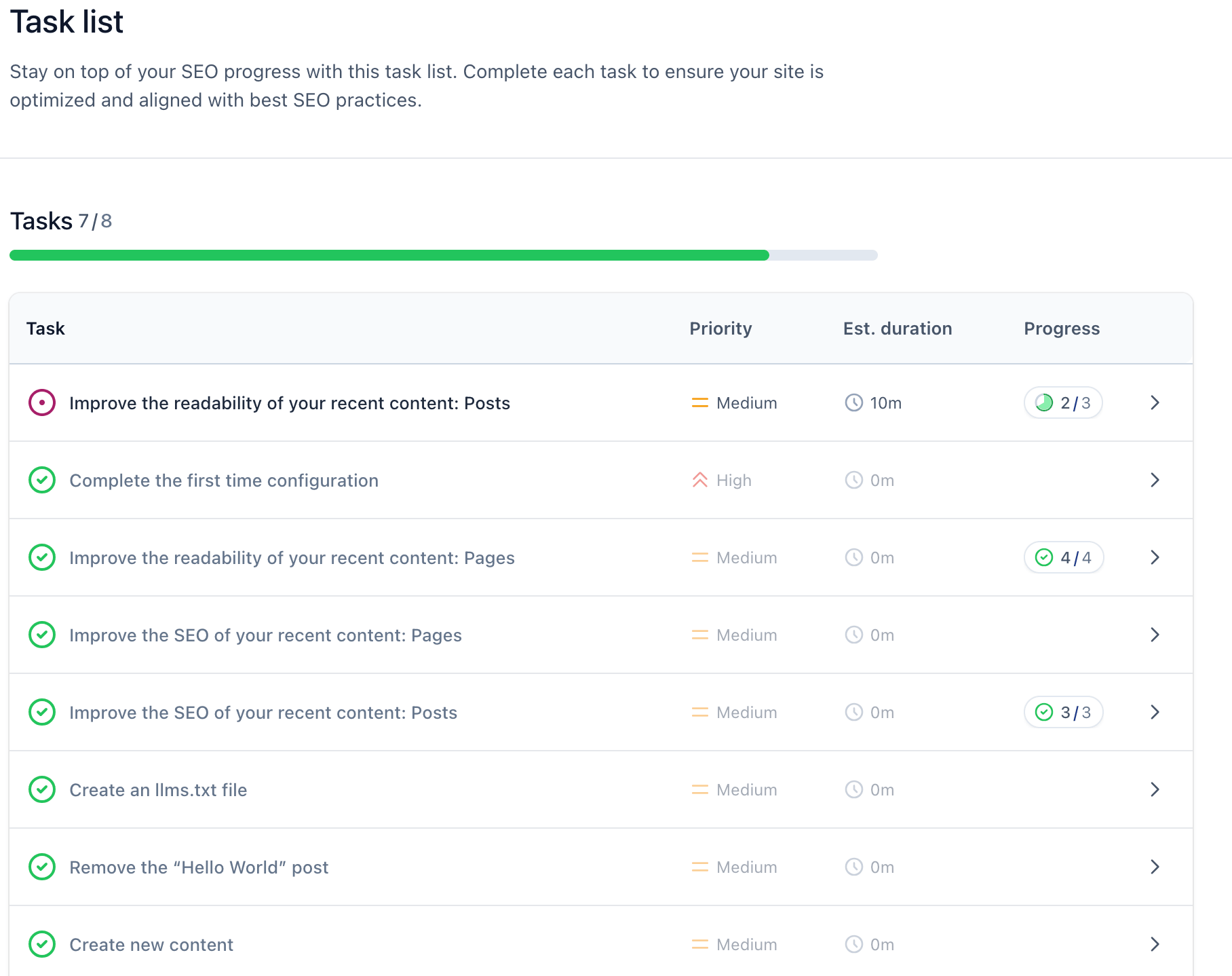
b) Task List:
The Task List in Yoast SEO shows a list of important steps you need to complete to properly set up your website’s SEO.
It helps you by:
- Guiding Setup: Provides step-by-step tasks like adding site information, connecting search engines, and configuring basic SEO settings
- Tracking Progress: Shows which tasks are completed and which are still pending
- Improving SEO: Ensures you don’t miss important settings that affect your website’s ranking
In Simple term the Task List is like a checklist that guides you to finish all important SEO setup steps.
c) Alert Centre:
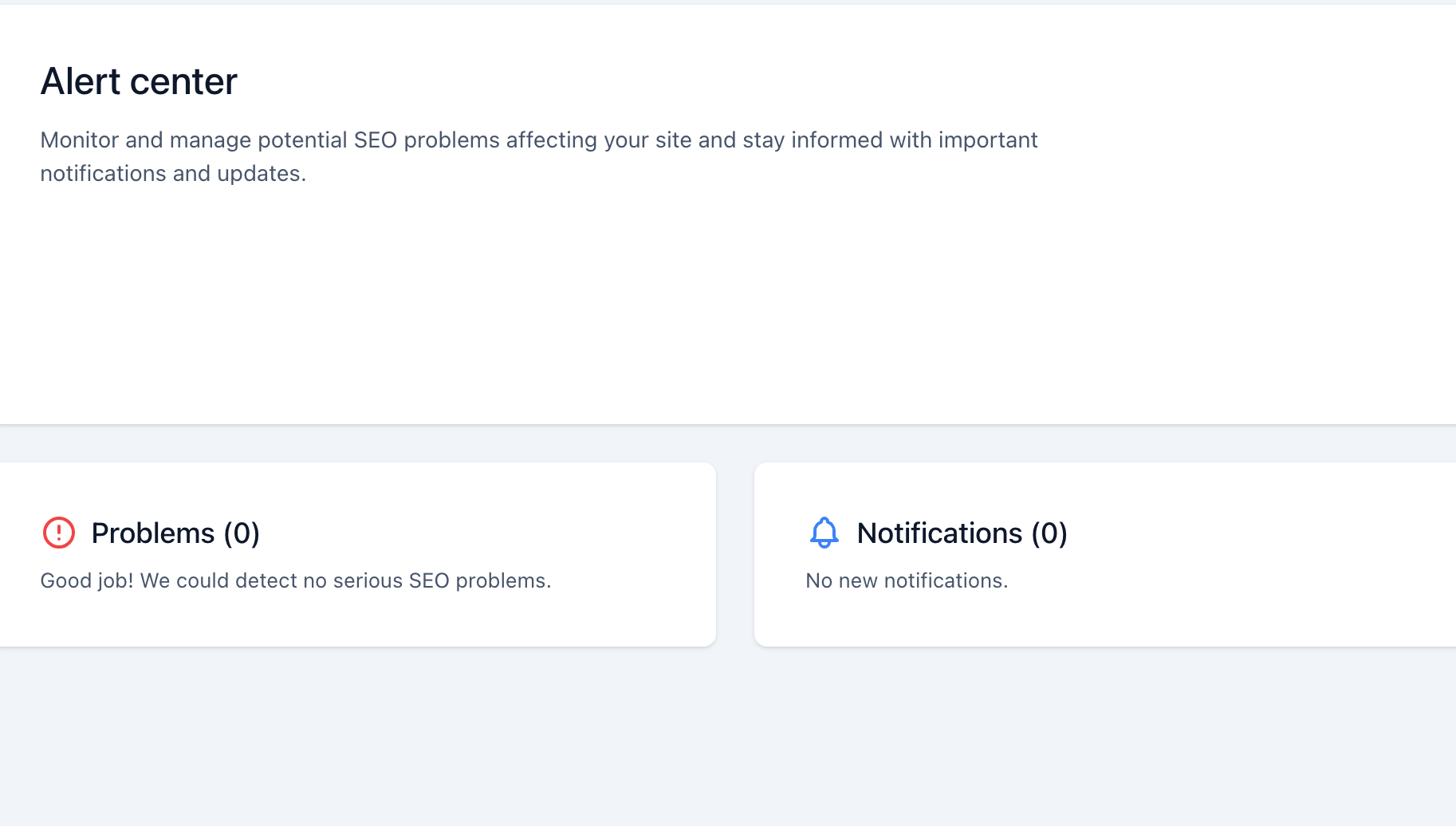
The Alert Center in Yoast SEO is a section where you can see important notifications and warnings related to your website’s SEO.
It helps you stay informed about issues that may affect your site’s performance. So, Please check frequently time to time for errors in your yoast seo sections.
d) First-Time Configuration:
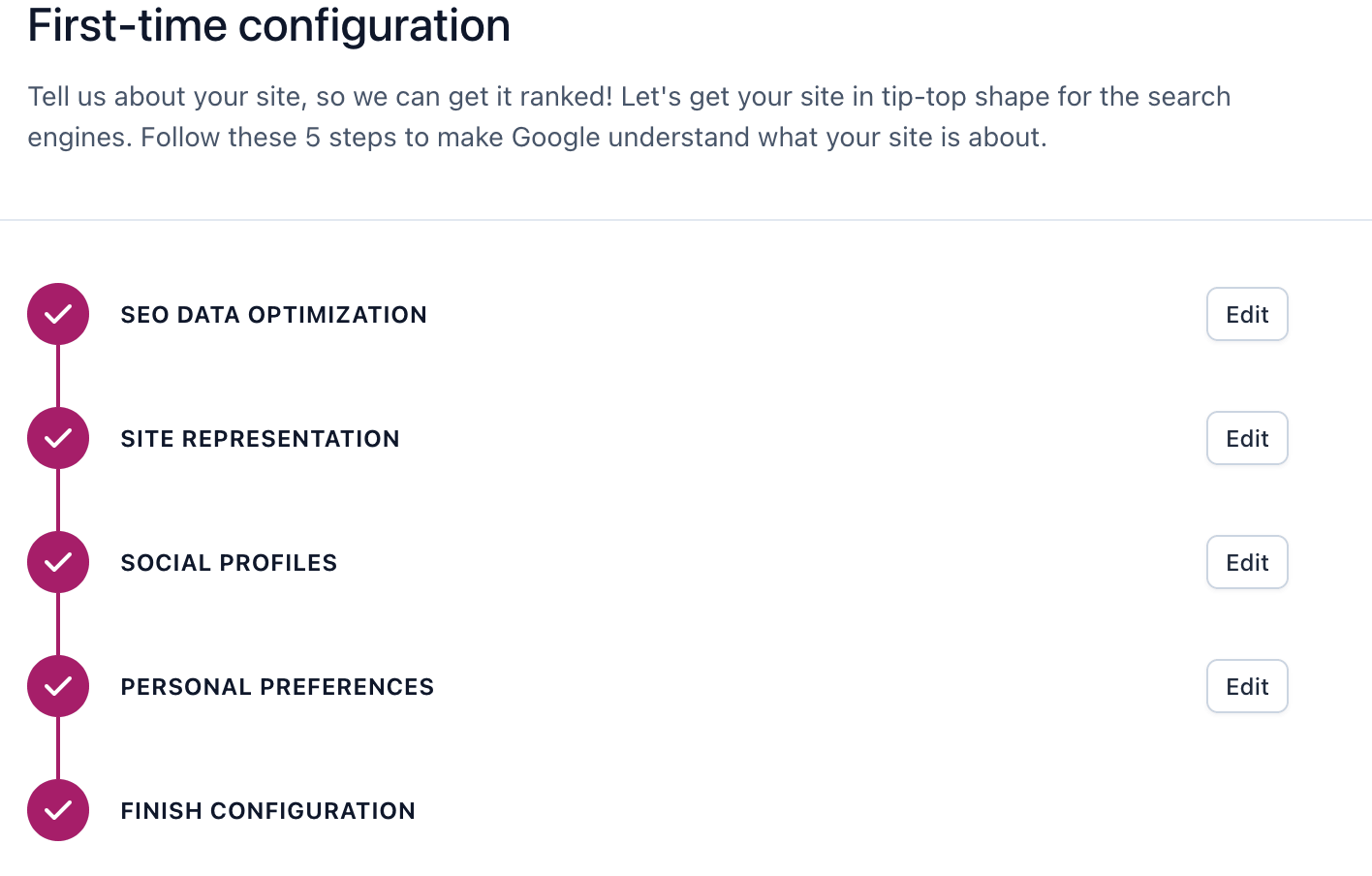
The First-Time Configuration in Yoast SEO is a setup wizard that helps you properly configure your website’s SEO settings when you install the plugin for the first time.
It guides you step by step so you don’t miss important details.
What This Section Includes
- Site Representation: Choose whether your site represents a person or an organization
- Site Details: Add your website name and logo
- SEO Preferences: Configure basic settings for search engines
- Social Profiles: Link your social media accounts
- Search Engine Visibility: Help search engines understand your site structure
B) Settings
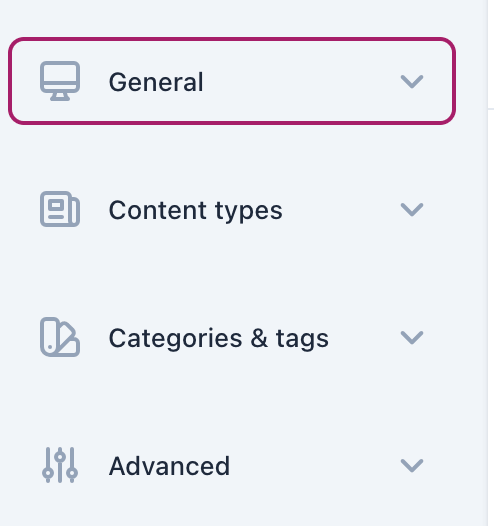
The Settings section in Yoast SEO allows you to control and customize how your website is optimized for search engines. First of all, it includes options for site features, content types, categories, archives, and advanced SEO configurations. In addition, these settings help you organize your website structure in a more SEO-friendly way. Moreover, you can fine-tune important SEO options to match your website goals. As a result, this section helps improve your site’s visibility and indexing in search engines.
Yoast SEO section is divided into four parts and that is:
- General
- Content Type
- Categories and Tags
- Advanced
a) General :
“Basically, the General section also has four parts, which are as follows:”
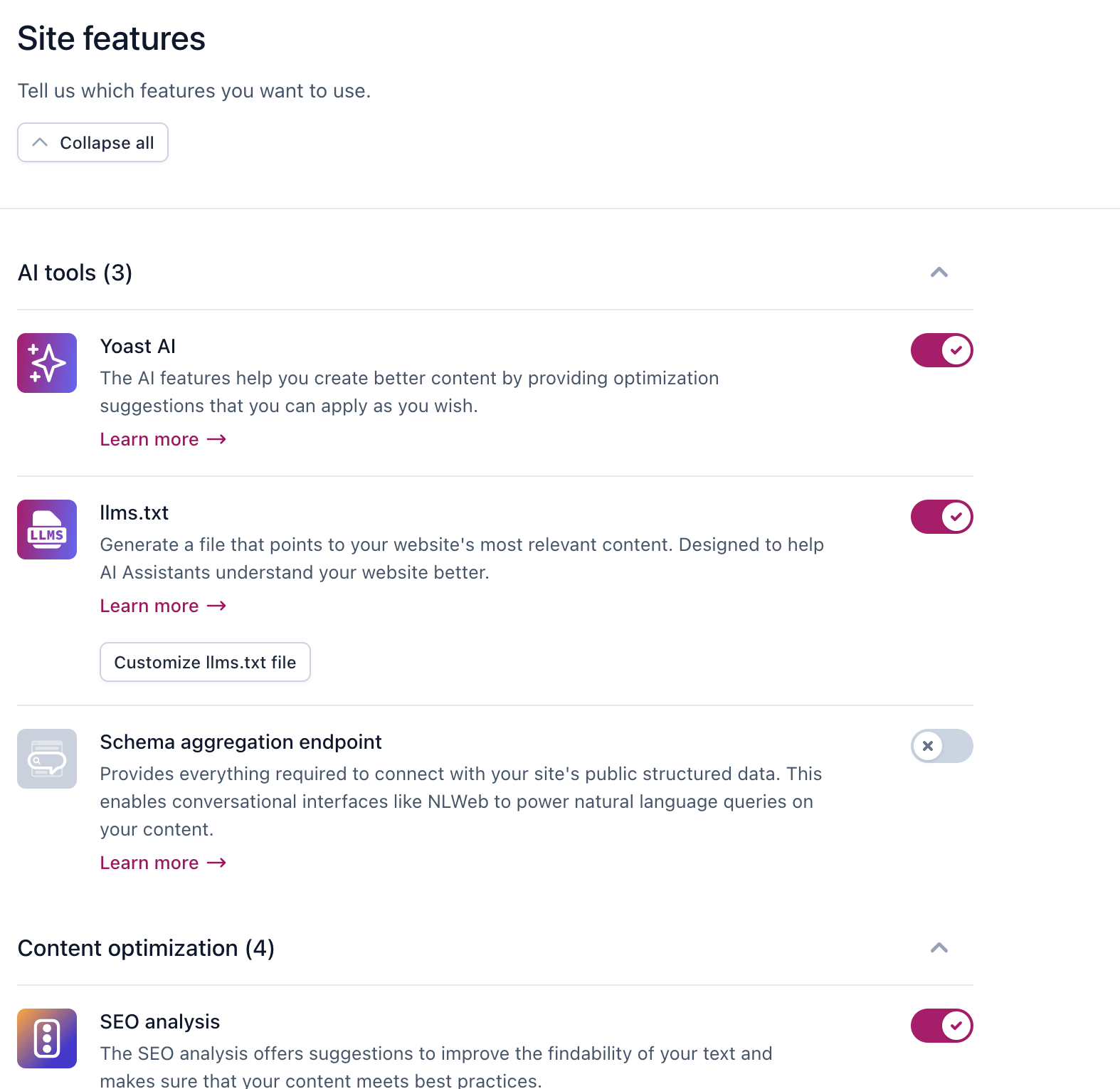
1.Site Features :
This section allows you to enable or disable Yoast SEO features like:
i) SEO analysis
ii) Readability analysis
iii) XML sitemaps
iv) Cornerstone content
v) Admin bar menu
It helps you control which tools Yoast SEO uses on your site.
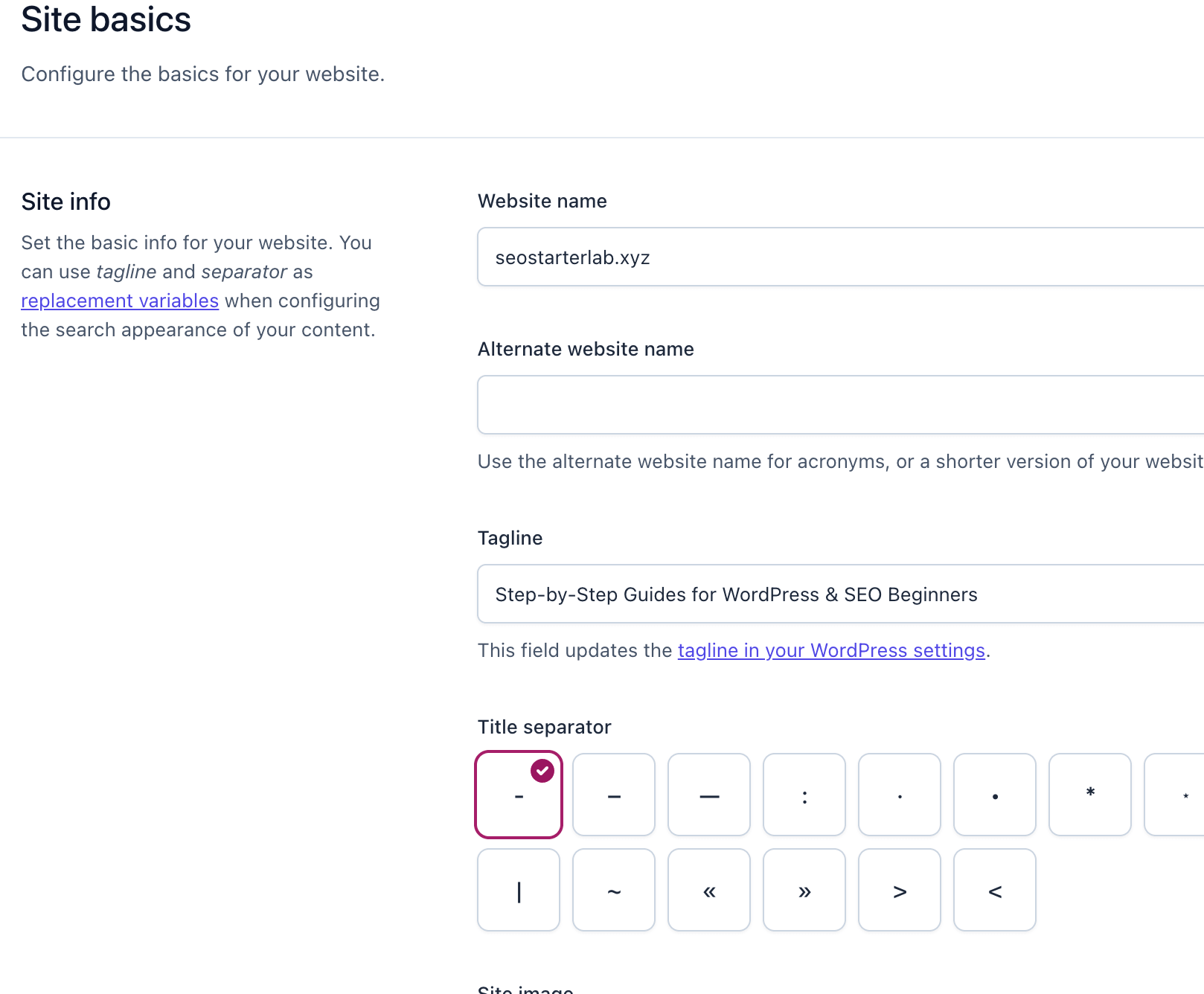
2. Site Basics :
Here you enter basic information about your website:
i) Site title
ii) Tagline
iii) Site logo
This helps search engines understand what your website is about.
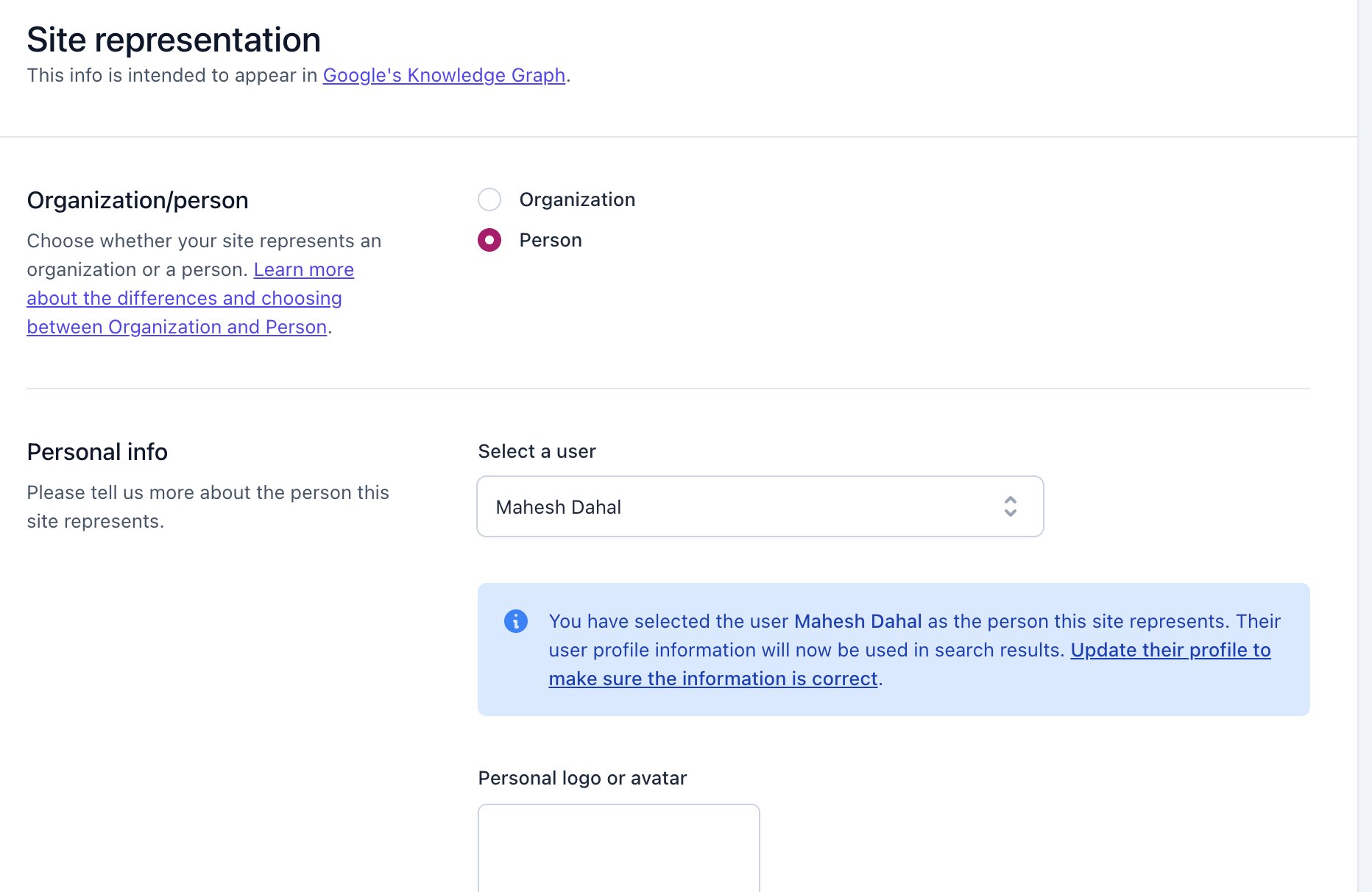
3. Site Representation :
This section defines what your website represents:
i) A person or an organization
ii) Name of the person or company
iii) Logo or profile image
This information is used in search engine results and structured data.
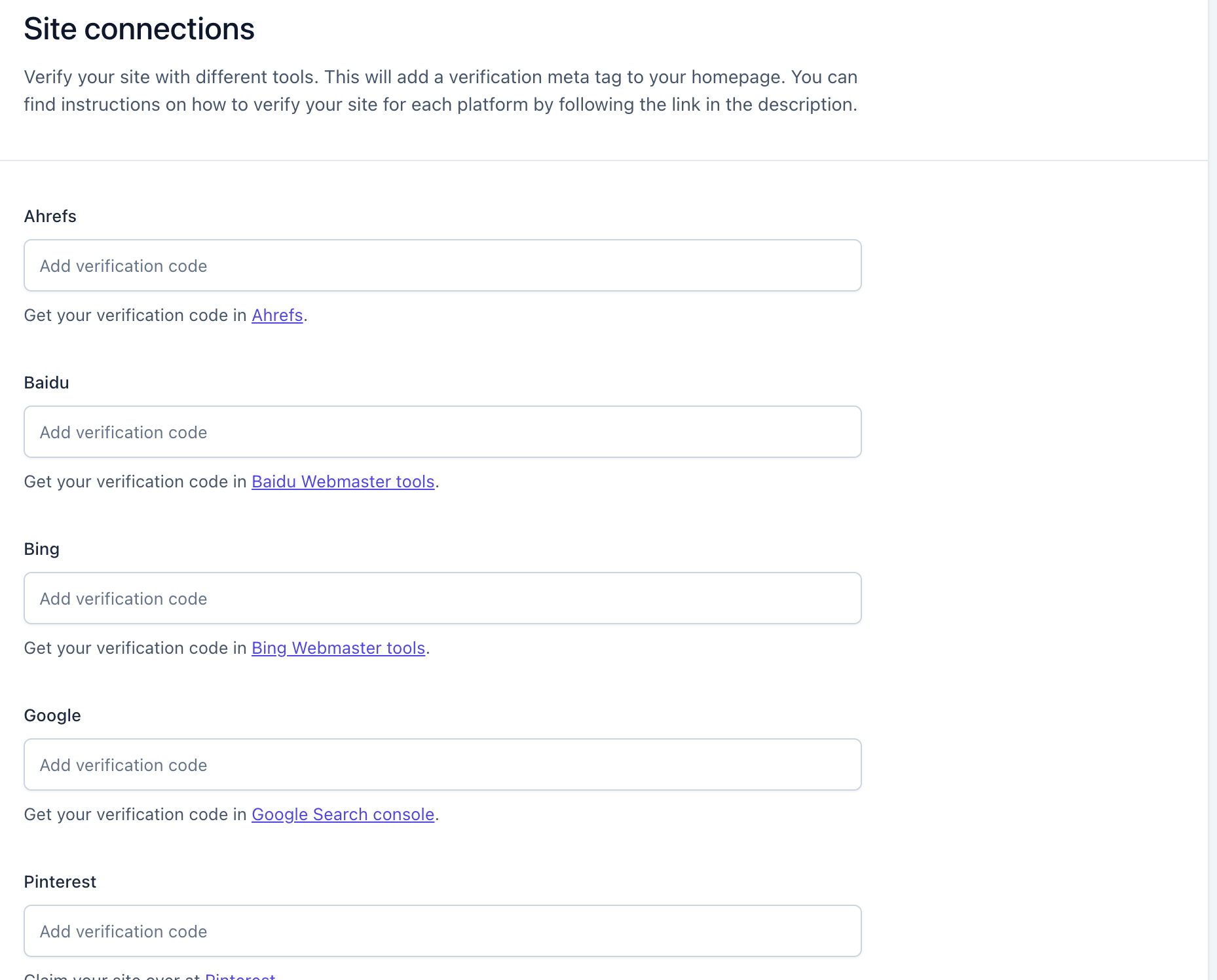
4. Site Connection
This allows you to connect your website with external platforms like:
Google Search Console
Other webmaster tools like Ahrefs, Baidu and Bings etc.
It helps verify your site and monitor performance.
b) Content Types:
“Similarly, the Content Types section also has four parts, which are as follows:”
1. Homepage
This setting controls the SEO appearance of your website’s homepage.
- You can set the SEO title and meta description
- Helps search engines understand your main page
- Improves how your site appears in search results
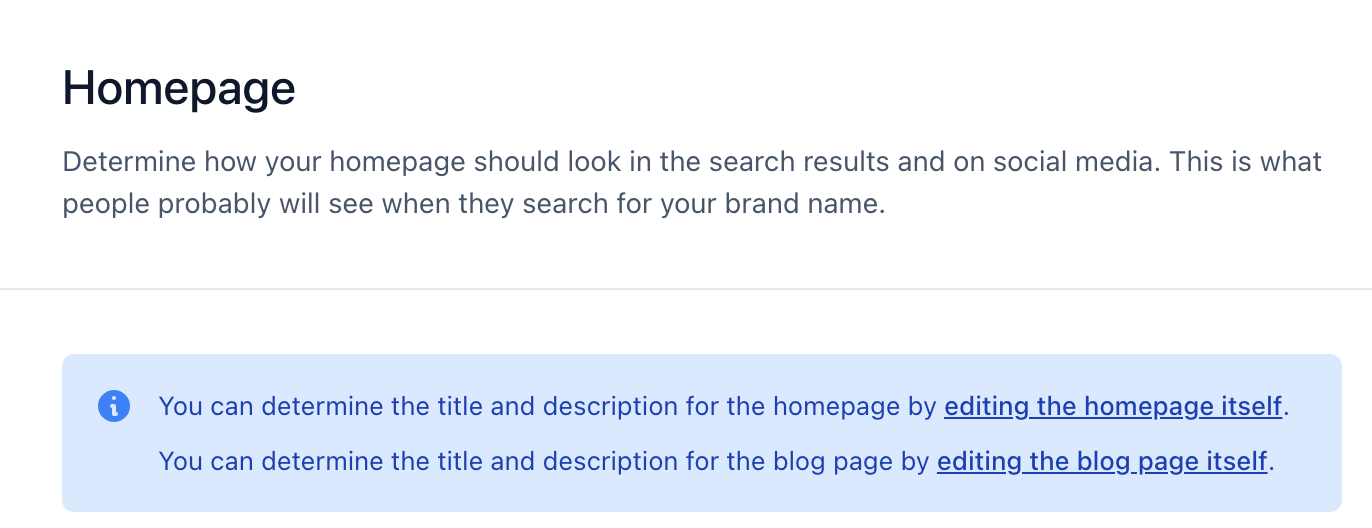
You can directly Edit homepage in WordPress page sections.
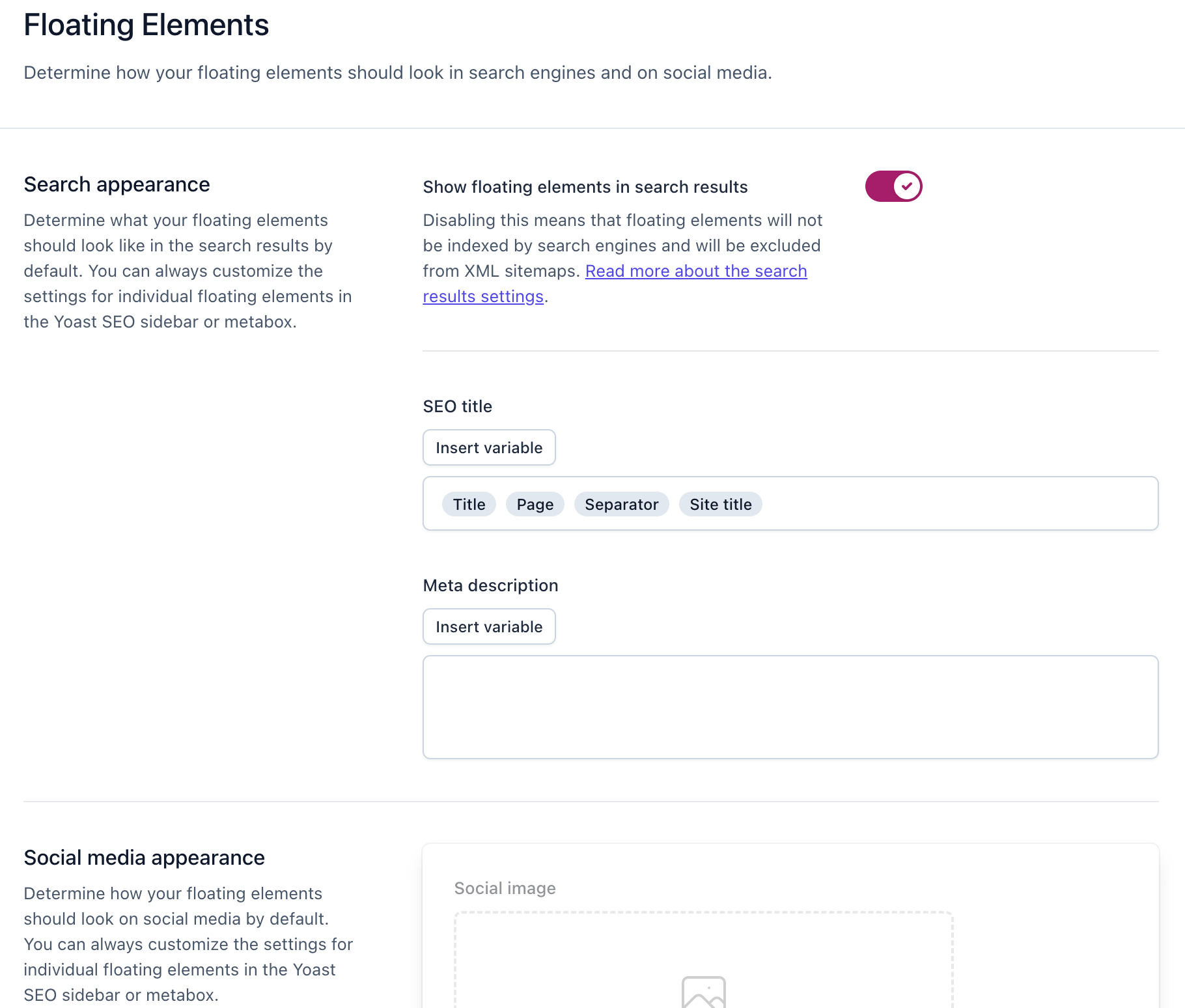
2. Floating Elements
Floating elements are small SEO tools that appear while editing content.
- Show SEO score and readability score
- Provide real-time suggestions for improvement
- Help optimize your content easily
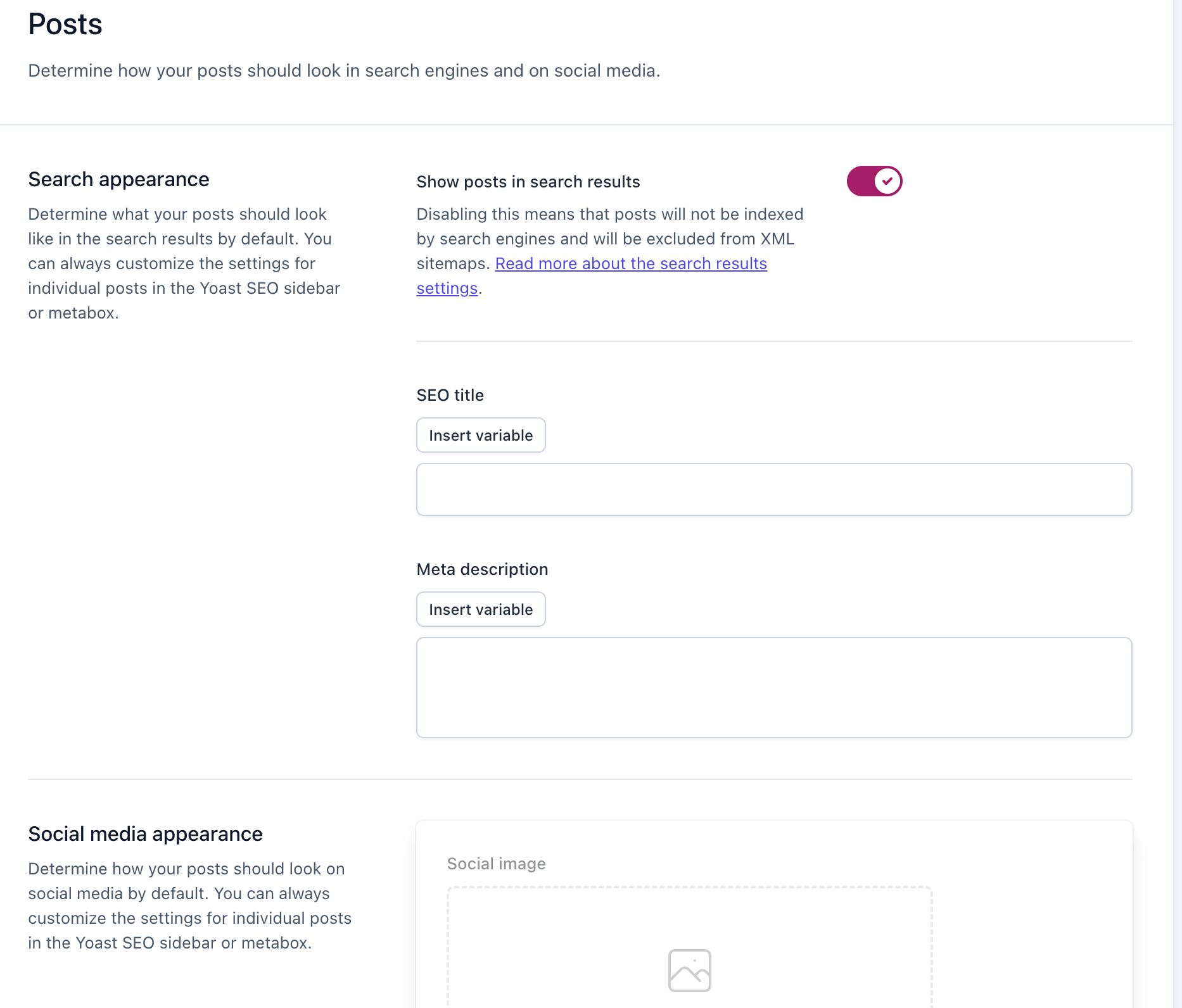
3. Posts
This controls SEO settings for blog posts.
- Set default SEO titles and meta descriptions
- Decide whether posts should appear in search results
- Customize how posts look when shared
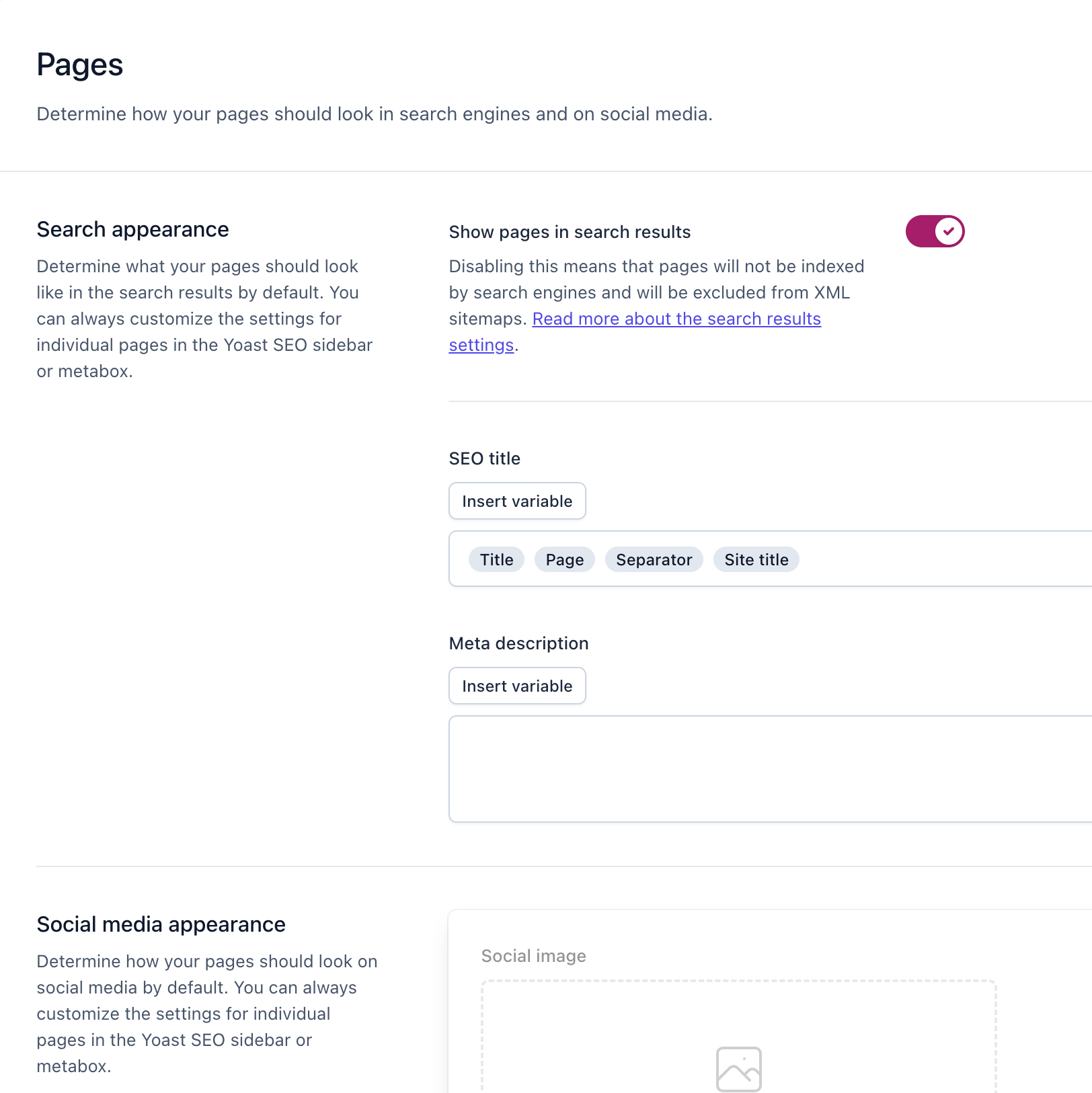
4. Pages
This controls SEO settings for static pages.
- Similar to posts but for pages like About, Contact
- Set SEO titles and descriptions
- Control indexing and visibility
c) Categories and Tags:
i) Categories
Purpose: Broad grouping of your posts (main topics of your website)
- Used to organize content into major sections
- Hierarchical (you can have parent and child categories)
- Each post should usually have one main category
Example:
- Category: “SEO”
- Sub-category: “On-page SEO”
- Sub-category: “Technical SEO”
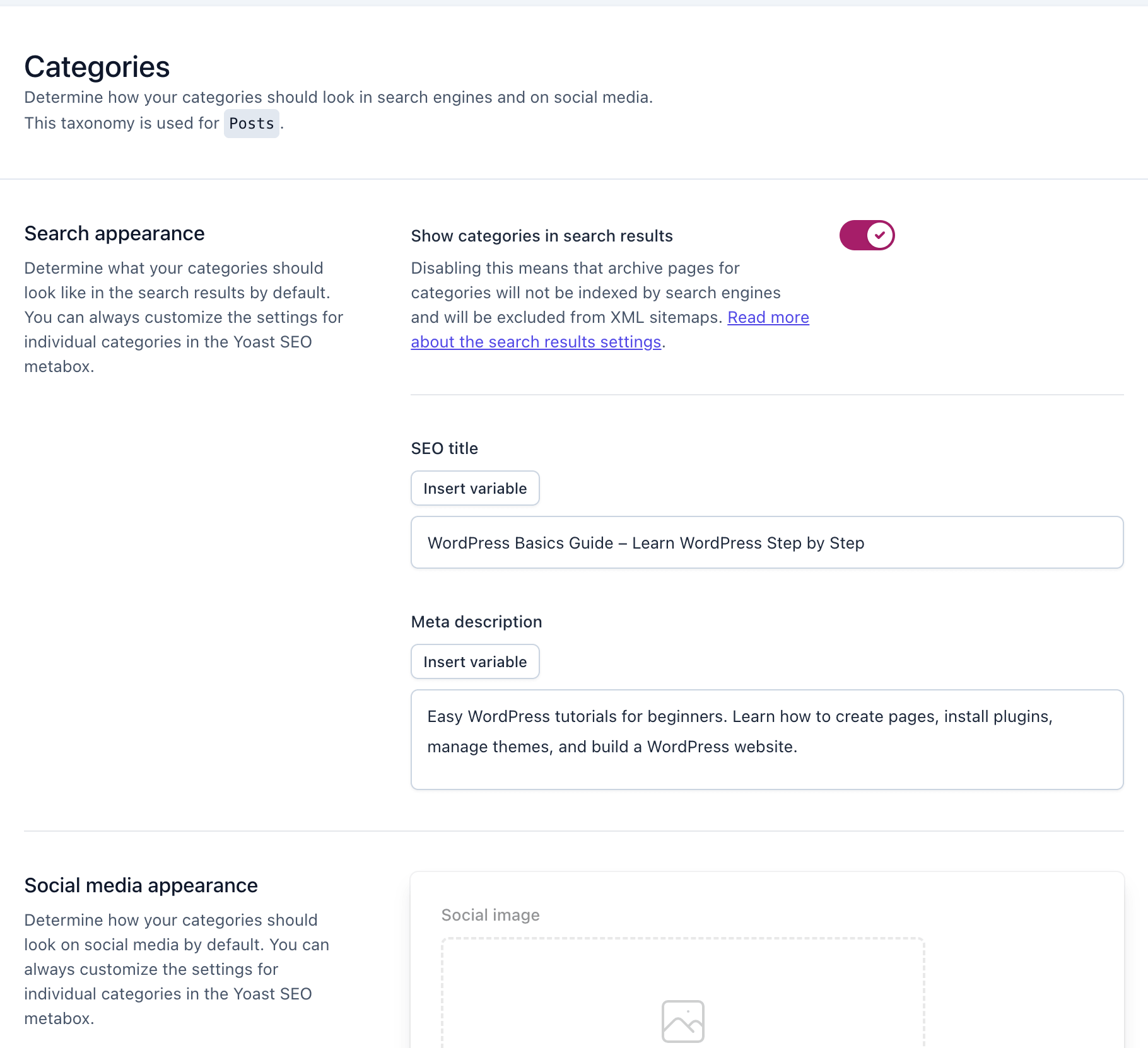
Think of categories as the table of contents of your site.
ii) Tags
Purpose: Specific keywords that describe details of a post
- Non-hierarchical (no parent/child structure)
- Optional, but useful for internal organization
- A post can have multiple tags
Example:
For an article about SEO:
- Tags: “meta description”, “keywords”, “backlinks”, “Yoast SEO”
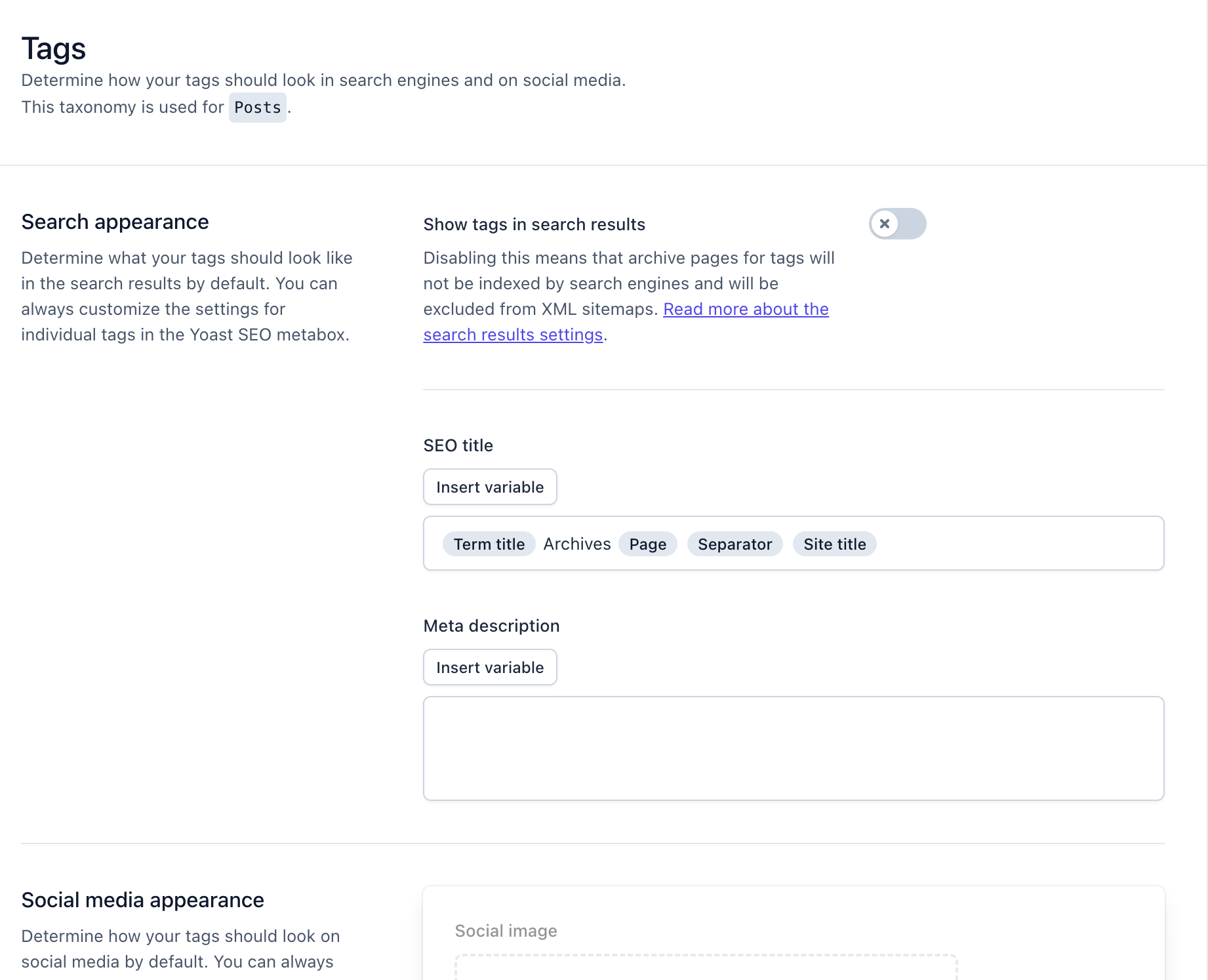
Think of tags as index keywords for specific topics mentioned in the post.
Pro tips for beginners:
In many cases in 2026, tags are less important for SEO, especially for small sites or when they’re not used strategically. In Yoast SEO, tags mainly help with organization, not ranking by themselves. So, keep it off do not overlap.
d) Advanced Setting :
In Yoast SEO, the advanced settings section is used to control how your website is handled by search engines. It allows you to manage indexing options, set canonical URLs, and define rules for crawling and displaying your content in search results. These settings help prevent duplicate content issues and give you more control over which pages should be visible to search engines and how they should be interpreted.
“Similarly, the Advanced section has many parts, which are as follows:
I) llms.txt:
In Yoast SEO, the llms.txt feature is a newer addition designed to help websites communicate more effectively with AI systems and large language models. For beginners, you can think of llms.txt as a file that provides structured guidance about your website content, similar to how robots.txt guides search engines.
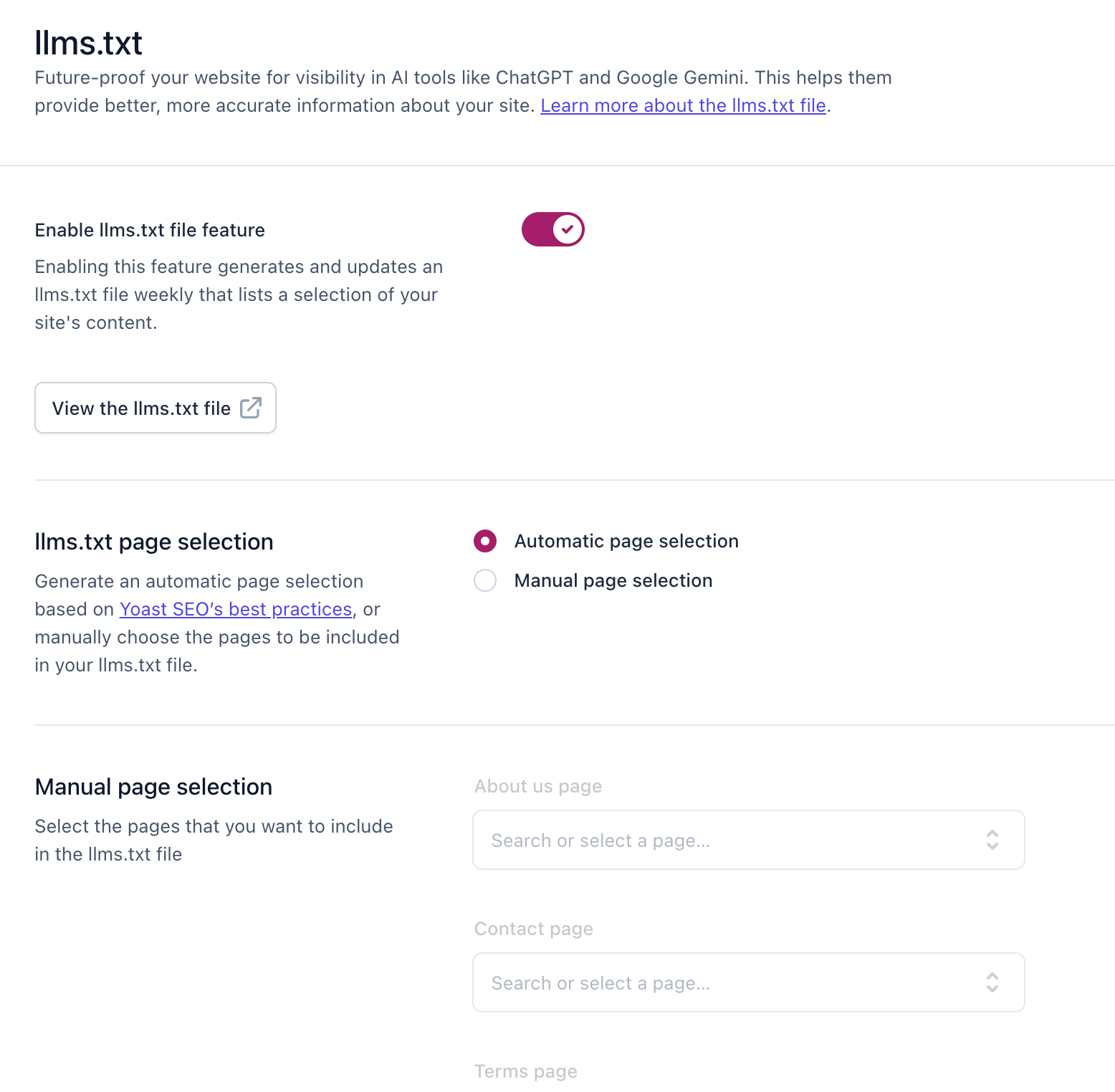
From a beginner SEO perspective, this feature supports AI visibility, content discoverability, and semantic understanding of your site. It works alongside traditional SEO elements like meta tags, internal linking, and XML sitemaps, but focuses more on how modern AI systems read and process your website.
II) Schema :
What is Schema?
Schema (structured data) is a type of code that tells search engines like Google:
- What your page is about
- What type of content it contains (article, product, FAQ, etc.)
- Key details about your content
It improves how your pages appear in search results (rich results).
Schema in Yoast SEO :
Yoast SEO automatically adds schema markup to your pages so search engines can better interpret your content.
In the Schema settings, you can define:
- Website type (blog, business, etc.)
- Organization or Person
- Default content types (posts, pages, articles)
- Knowledge graph information
Examples:
If your page is a blog post, schema helps Google understand:
- This is an Article
- Who the author is
- When it was published
- What the topic is
Importance of Schema:
- Helps search engines understand content context
- Can enable rich snippets (ratings, FAQs, breadcrumbs, etc.)
- Improves visibility and click-through rate (CTR)
- Supports semantic SEO
Schema types you may see in Yoast :
- Article
- WebPage
- Organization / Person
- FAQ
- Breadcrumbs
- Product (for eCommerce sites)
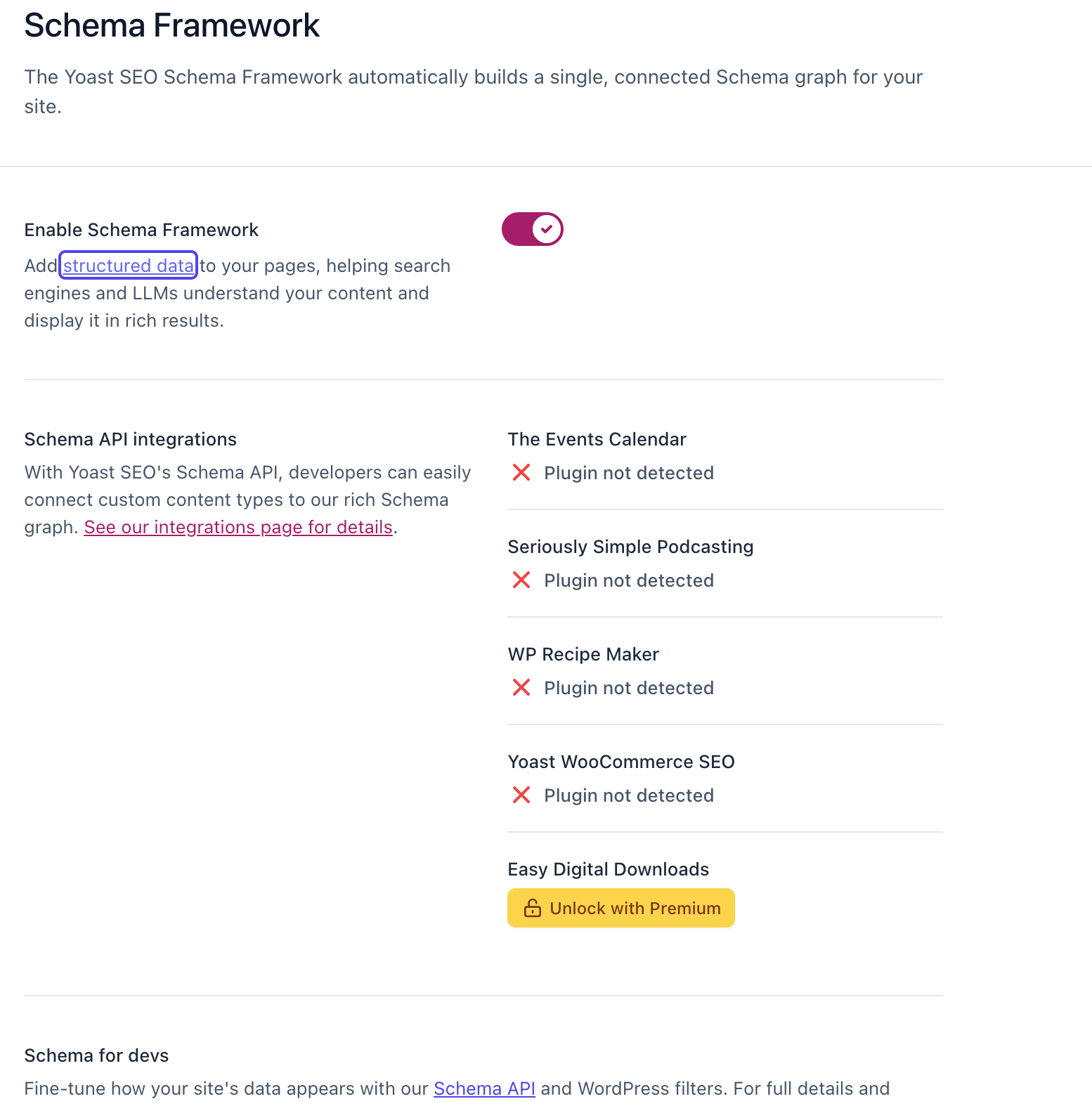
As shown in figure, Yoast SEO already adds basic schema markup (structured data) to your website automatically. The message is not an error—it’s just informational.
The “Schema API integration plugin not detected” message appears when:
- No external plugin is installed to extend schema functionality
- No third-party tool is connected to Yoast’s schema API
In most cases, this is completely normal.
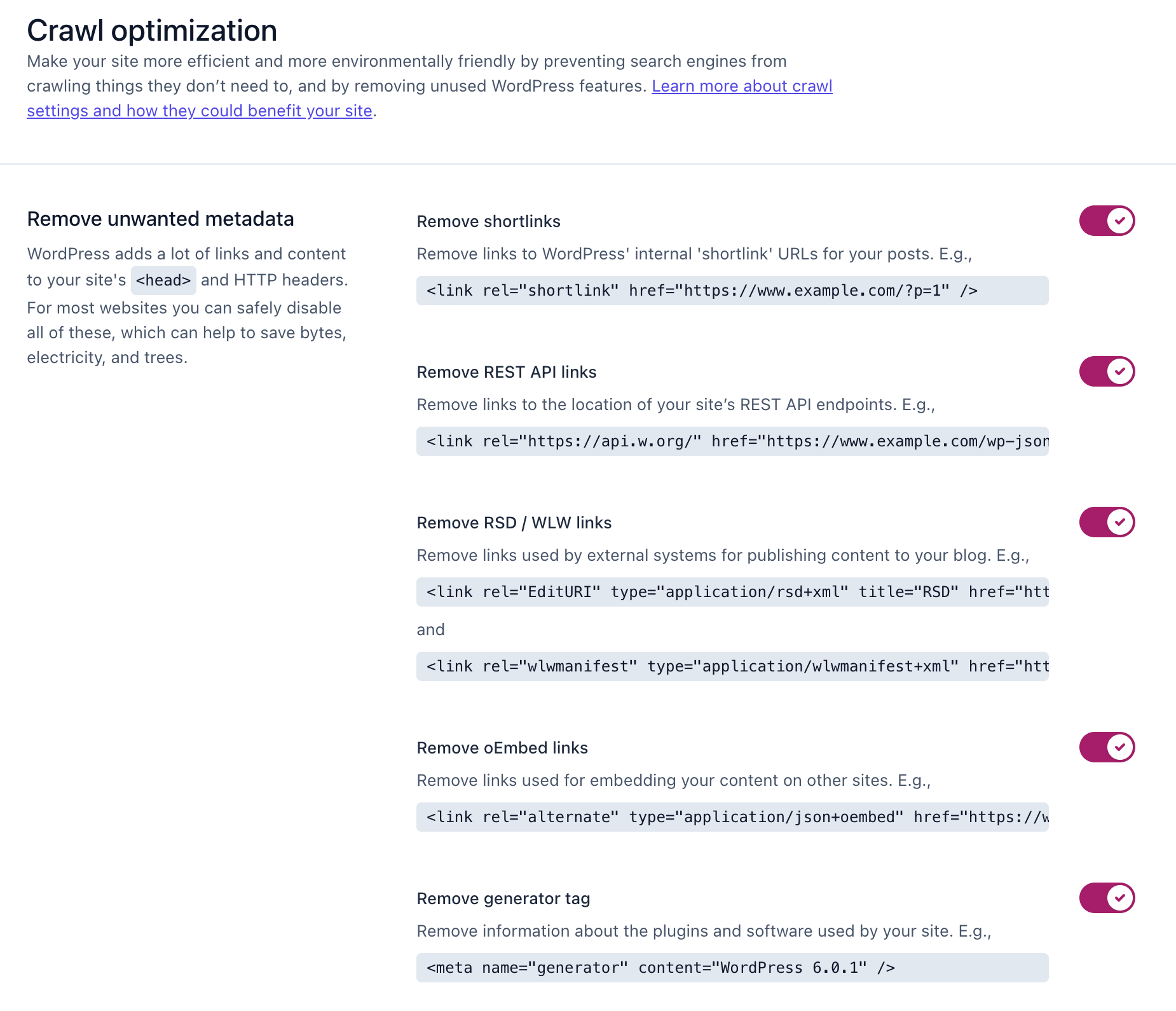
III) Crawl optimization :
In Yoast SEO, crawl optimization refers to helping search engines like Google crawl your website more efficiently by controlling what they should or shouldn’t access and index.
What is crawl optimization?
Crawl optimization is the process of guiding search engine bots (crawlers) to:
- Focus on important pages
- Avoid low-value or duplicate pages
- Use your crawl budget efficiently
This helps search engines understand your site faster and more accurately.
How Yoast SEO helps with crawl optimization ?
Yoast SEO provides settings to manage:
- Indexing rules (what should be indexed or noindexed)
- Meta robots tags (control visibility in search results)
- Archives, categories, and tags settings
- Schema and structured data signals
Key areas involved :
- Preventing duplicate content (e.g., tag archives if not needed)
- Controlling which pages appear in search results
- Managing low-value pages that don’t need indexing
- Improving site structure for better crawling
Why crawl optimization matters ?
- Helps search engines prioritize important pages
- Prevents wasted crawl budget
- Reduces duplicate or thin content issues
- Improves overall SEO performance
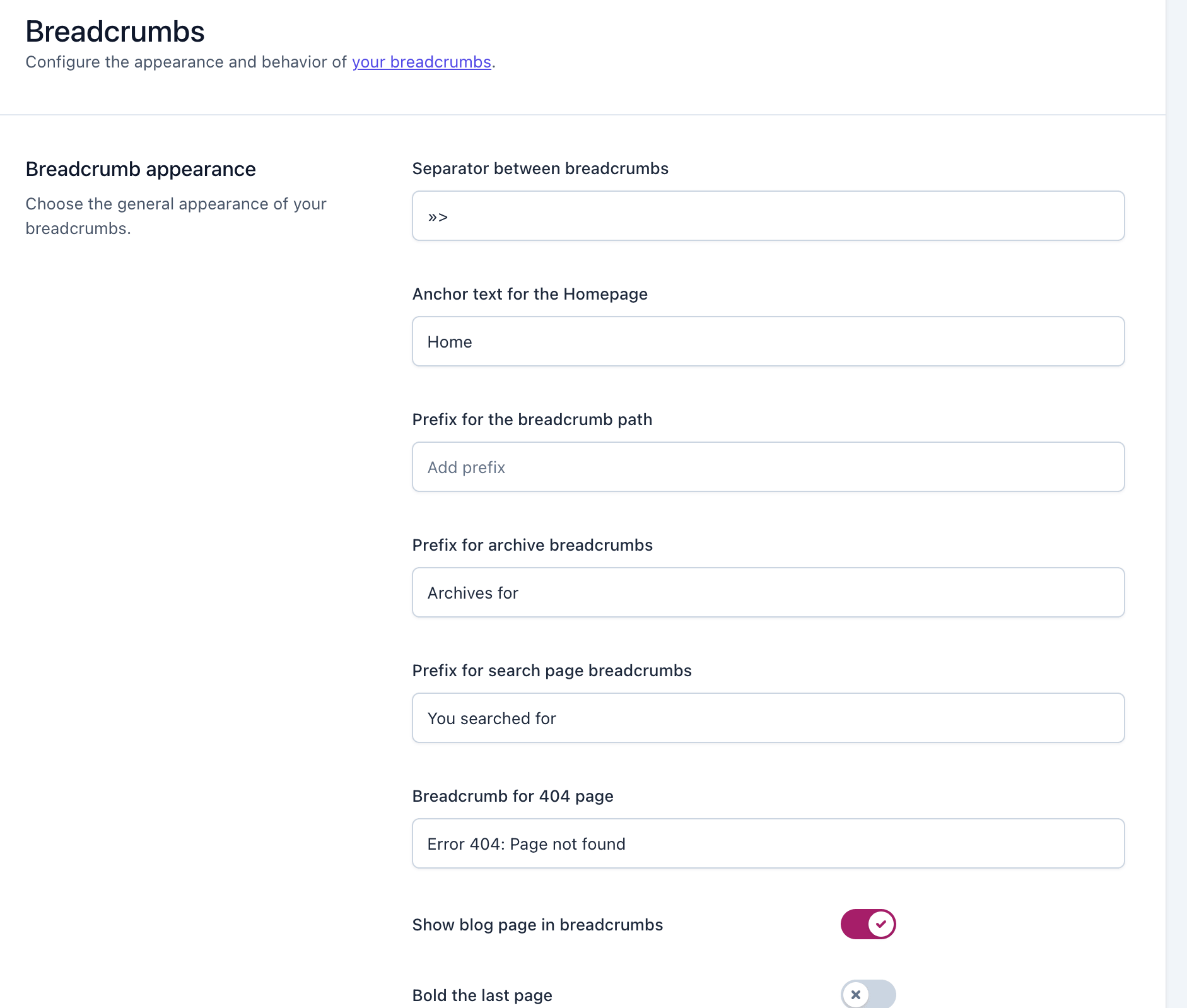
IV) Breadcrumbs :
In Yoast SEO, breadcrumbs are a navigation feature that shows users the path they took to reach a page on your website. They also help search engines understand your site structure.
What are breadcrumbs?
Breadcrumbs are a type of internal navigation that looks like:
Home > Blog > SEO Tips > Current Page
They show hierarchy and location within your website.
Breadcrumbs in Yoast SEO:
Yoast SEO allows you to:
- Enable breadcrumbs on your website
- Customize how they appear
- Control separators and labels
- Improve structured data for search engines
Once enabled, Yoast generates breadcrumb schema automatically.
Why breadcrumbs are important :
- Improve user navigation
- Help users go back to previous pages easily
- Improve site structure clarity
- Help search engines understand relationships between pages
- Can appear in Google search results as rich snippets
SEO benefits :
- Better internal linking
- Improved crawlability
- Enhanced user experience
- Cleaner website hierarchy signals
Example:
If someone visits a blog post, breadcrumbs might show:
Home > Blog > WordPress SEO > Current Article
This tells both users and search engines where the page fits in your site.
Tips for beginners :
- Mention “breadcrumbs” clearly
- Describe the purpose (navigation, hierarchy)
- Keep it short and natural
- Avoid repeating keywords excessively
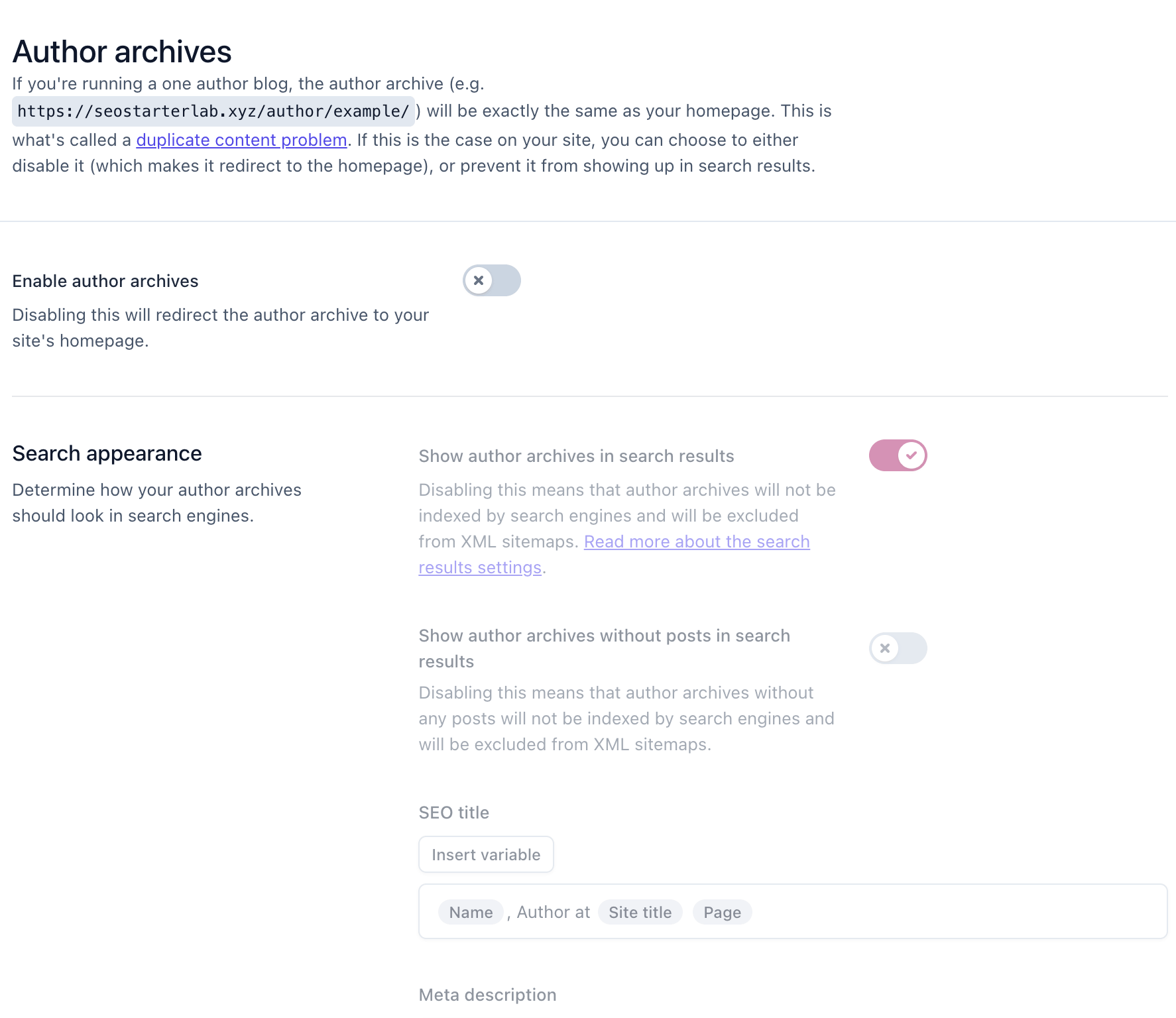
V) Author Archives :
An author archive is a page that shows all the posts written by a specific author on a website. It helps users easily find and read more articles from the same author.
Author archives in Yoast SEO :
In Yoast SEO settings, you can:
- Enable or disable author archives
- Choose whether they should be indexed
- Add SEO titles and meta descriptions
For single-author blogs, some people disable them to avoid duplicate content.
VI) Date Archives :
In Yoast SEO, a date archive is a page that shows all posts published on a specific date, month, or year.
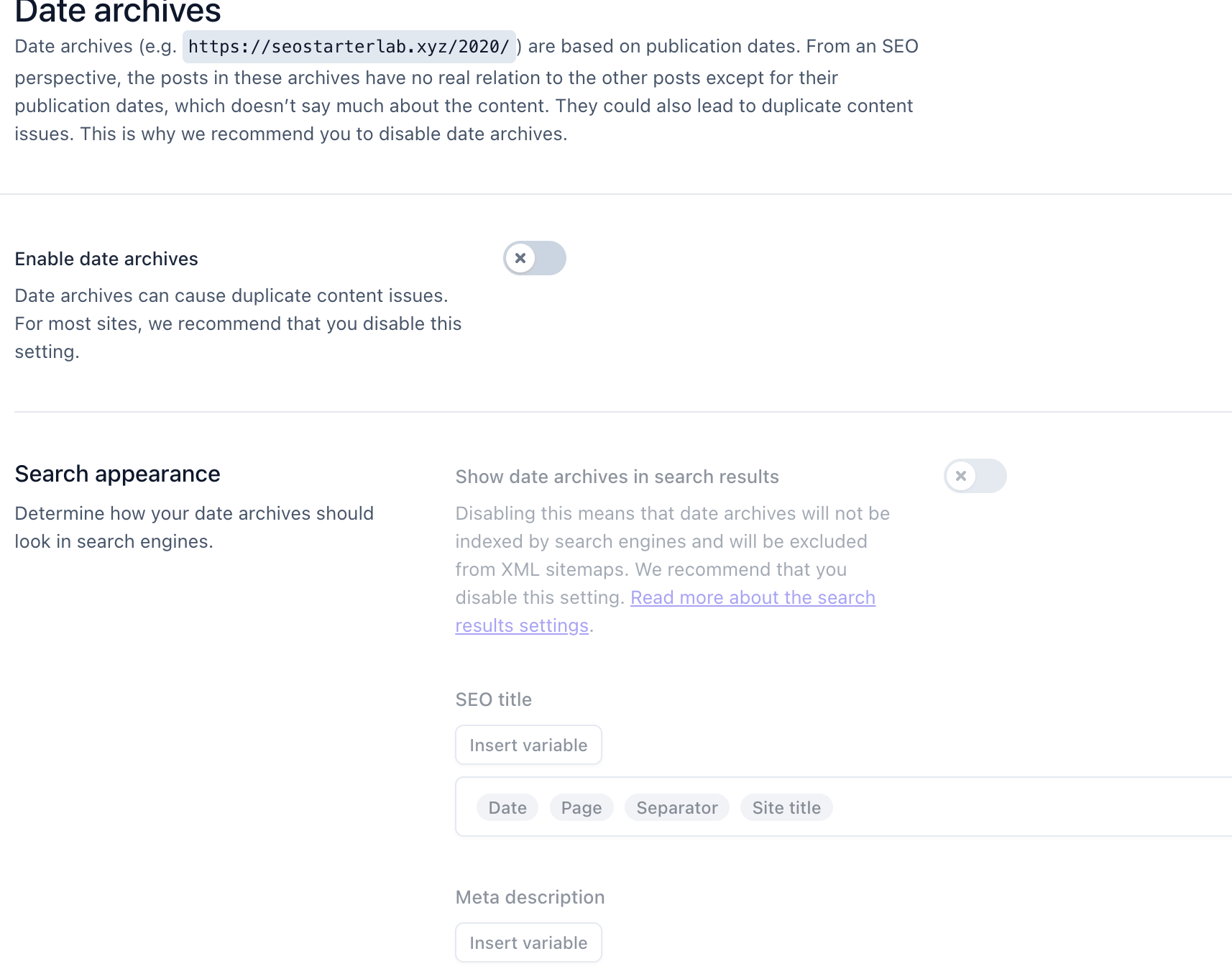
Date archives in Yoast SEO
In Yoast SEO settings, you can:
- Enable or disable date archives
- Control whether they are indexed by search engines
- Add SEO titles and meta descriptions
Many single-author blogs choose to disable them to avoid duplicate or thin content.
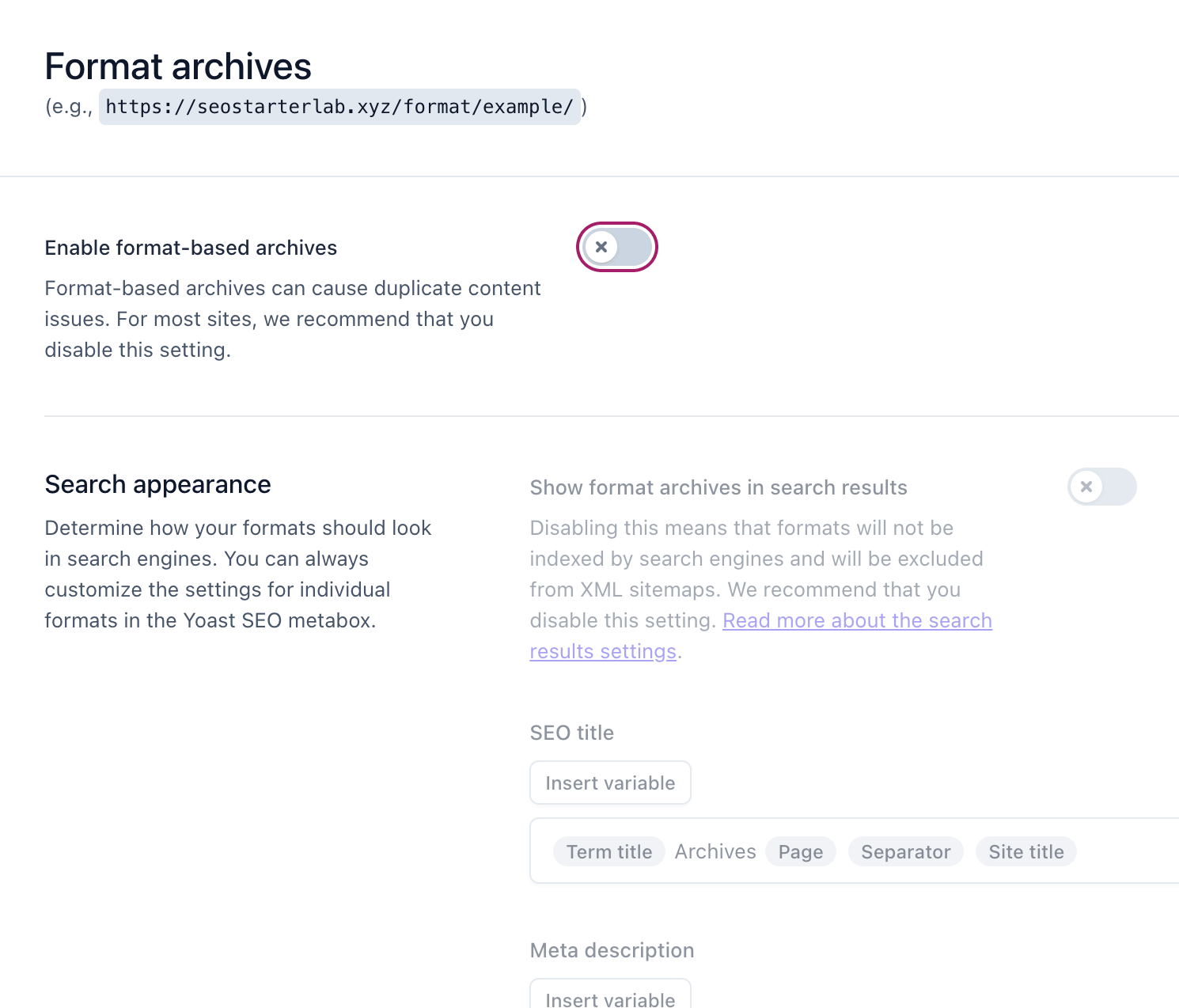
VII) Format archives :
In Yoast SEO, a format archive is a page that groups posts based on their content format, such as image, video, quote, or standard posts.
Format archives in Yoast SEO
In Yoast SEO settings, you can:
- Enable or disable format archives
- Choose whether they should appear in search results
- Control SEO title and meta description
Many websites disable them because they often create duplicate or low-value pages.
VIII) Special Page :
In Yoast SEO, special pages are automatically created pages that are not regular posts or pages but still exist on your website.
Special pages in Yoast SEO
Yoast allows you to:
- Set SEO titles for special pages
- Customize how they appear in search (if needed)
- Control indexing (often kept noindex)
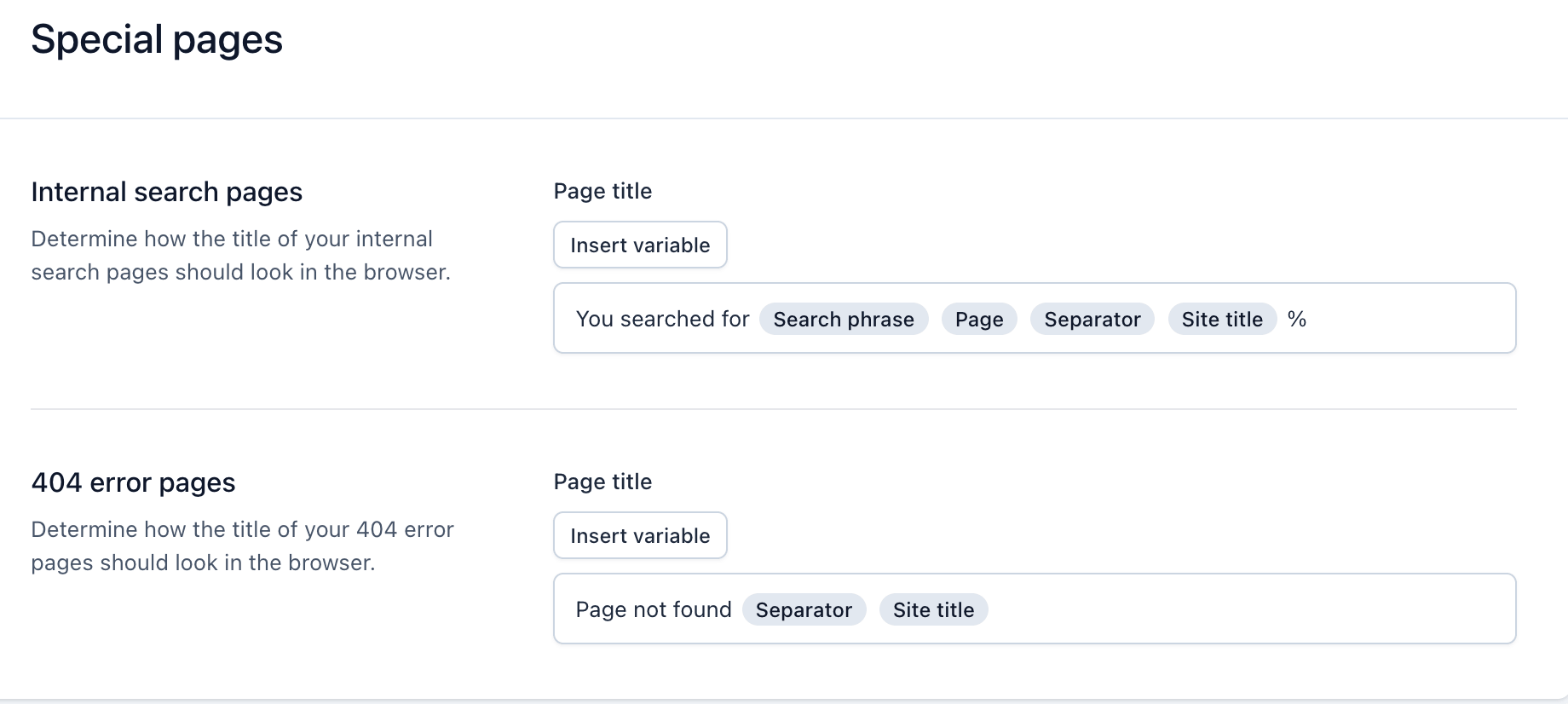
Special pages are automatic pages like search results or 404 pages that help your website function properly but are usually not important for SEO ranking.
IX) Media Pages:
In Yoast SEO, media pages are pages automatically created for each image or file you upload to your website.In Yoast SEO, media pages are pages automatically created for each image or file you upload to your website.
Why media pages can be a problem ?
- They often have very little content
- Can create thin content issues
- May hurt SEO if indexed
- Not useful for users
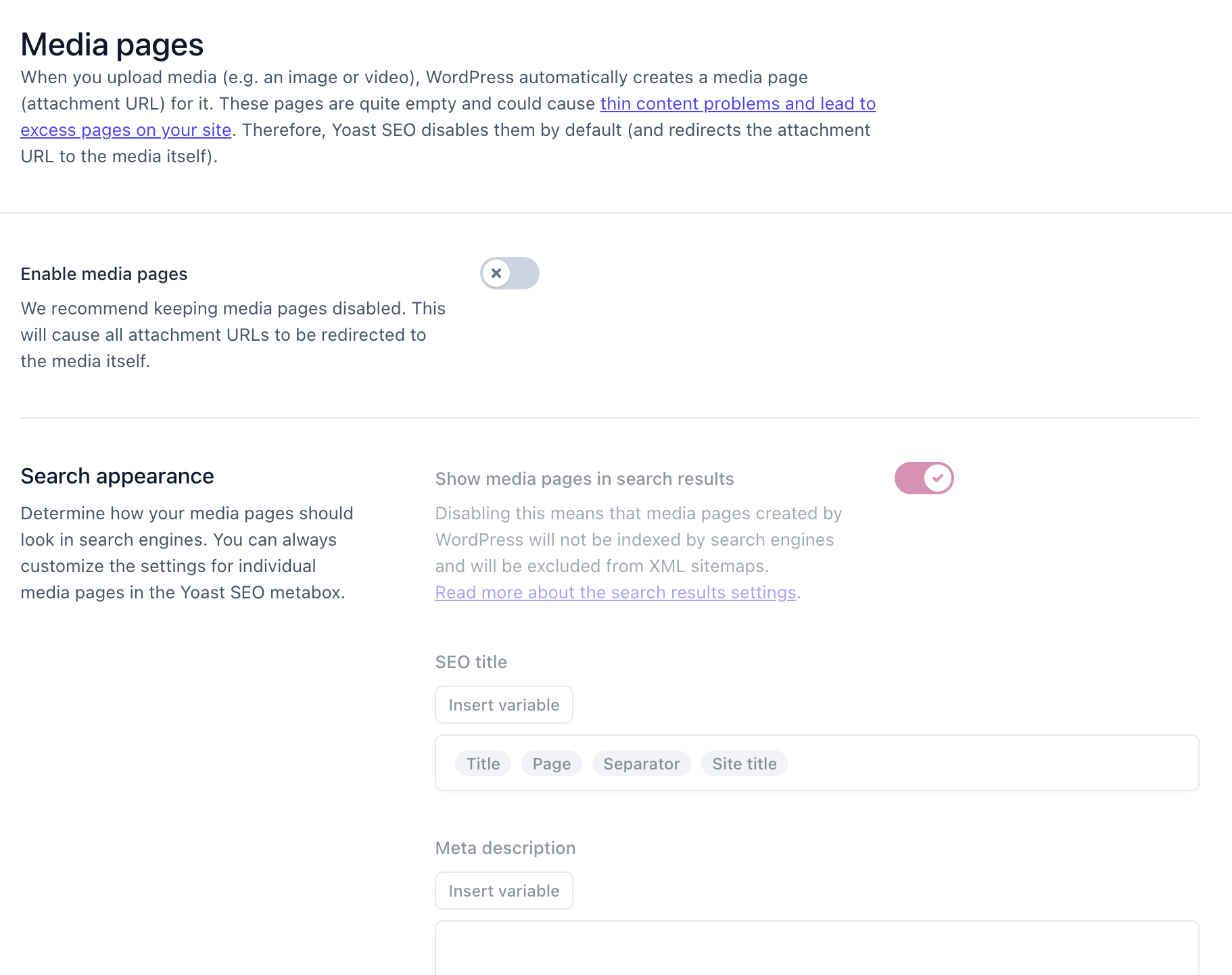
Media pages are auto-generated pages for images, and it’s best to redirect them to the image file to avoid SEO issues.
X) Really Simple Syndication(RSS) :
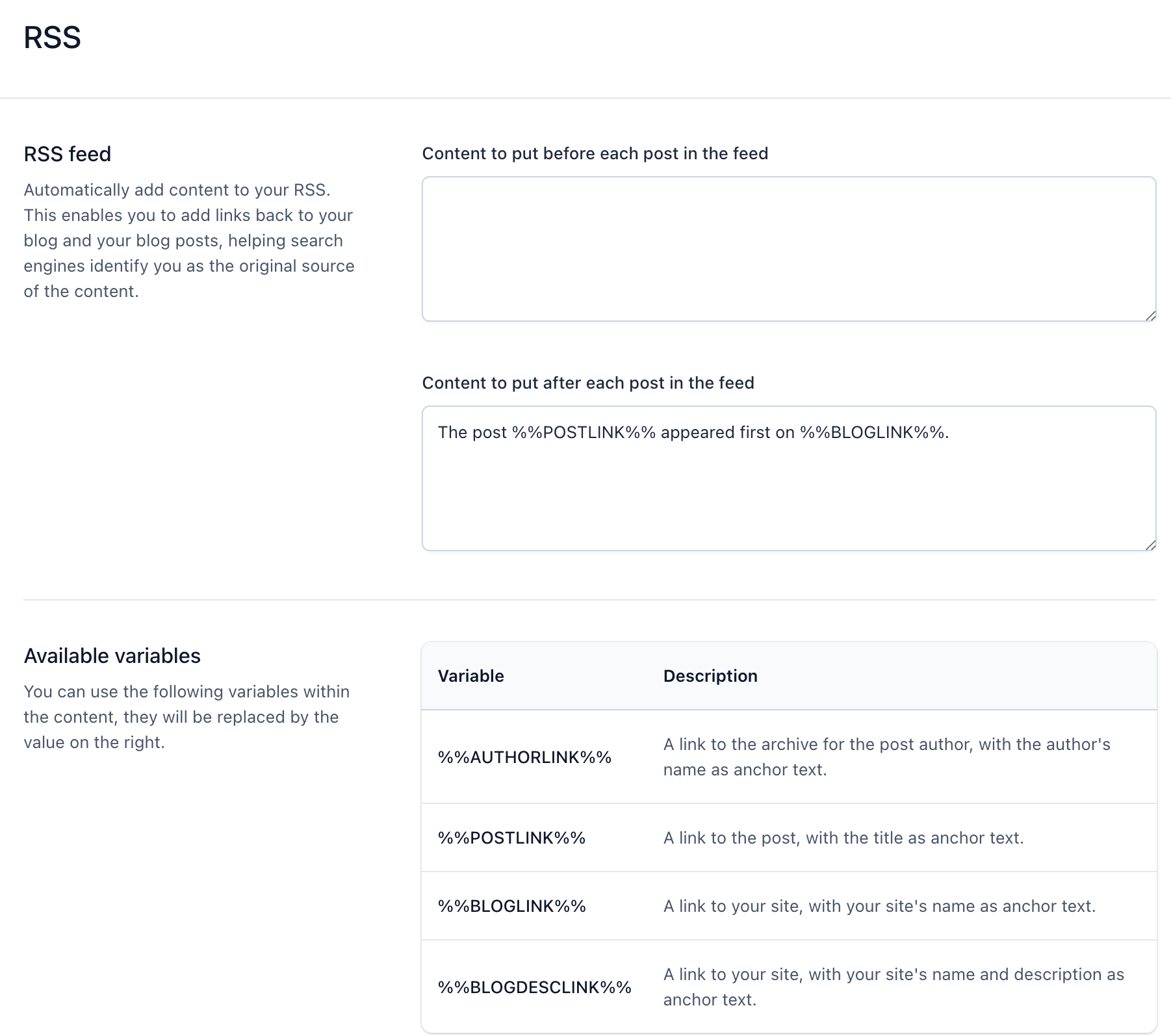
In Yoast SEO, RSS settings are used to control how your website content appears in RSS feeds and to protect your content from being copied.
RSS in Yoast SEO
Yoast SEO lets you:
- Add custom text before or after each post in the RSS feed
- Include links back to your original article
- Protect your content from content scrapers
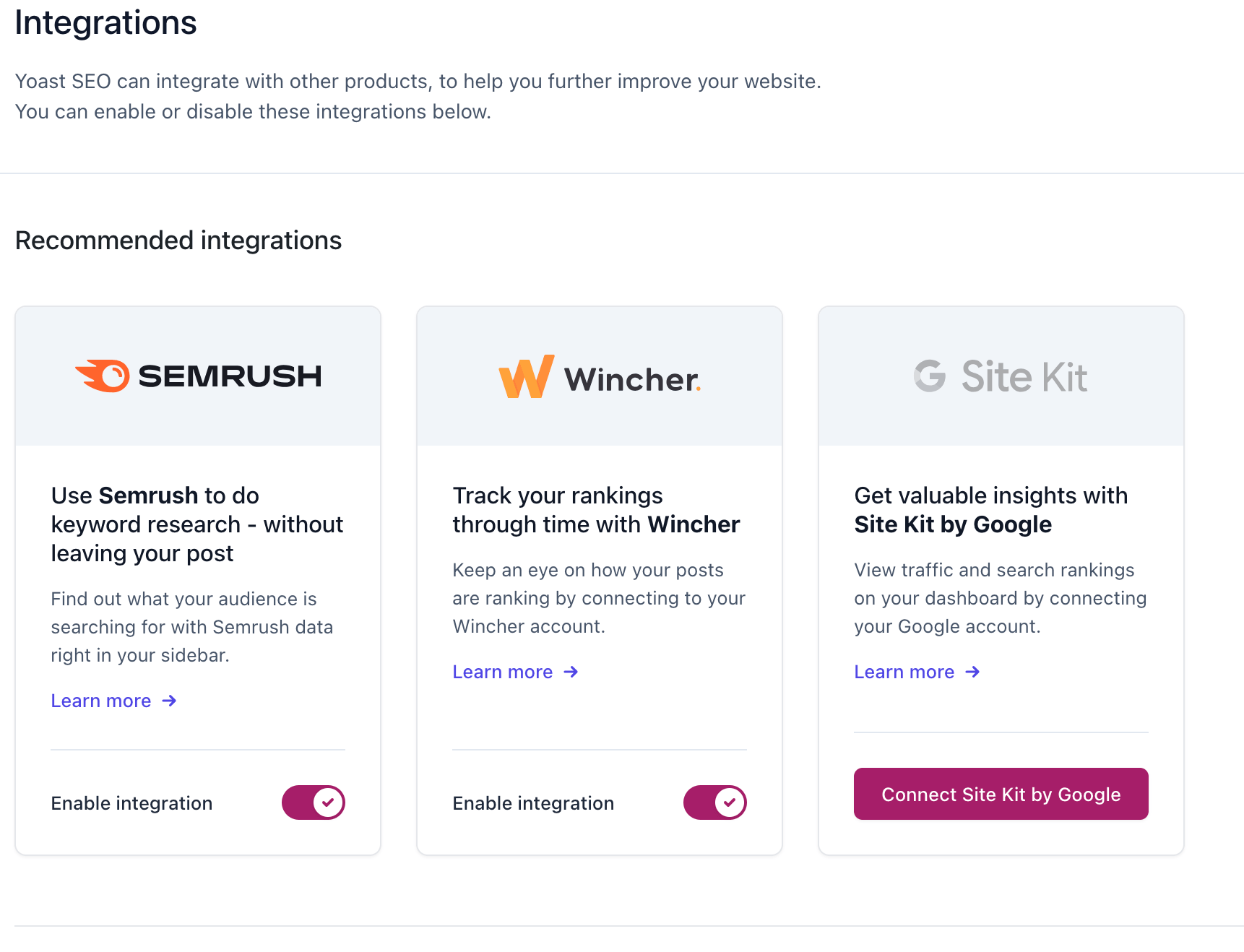
C) Integrations :
In Yoast SEO, the Integrations section is used to connect Yoast with other tools and services to improve your SEO and workflow.
Integrations allow Yoast SEO to work with other platforms or plugins to enhance features and performance.
What you can do in Integrations
Depending on your setup, you may see options to:
- Connect with third-party tools
- Enable extra SEO features
- Improve content optimization with external services
D) Tools :
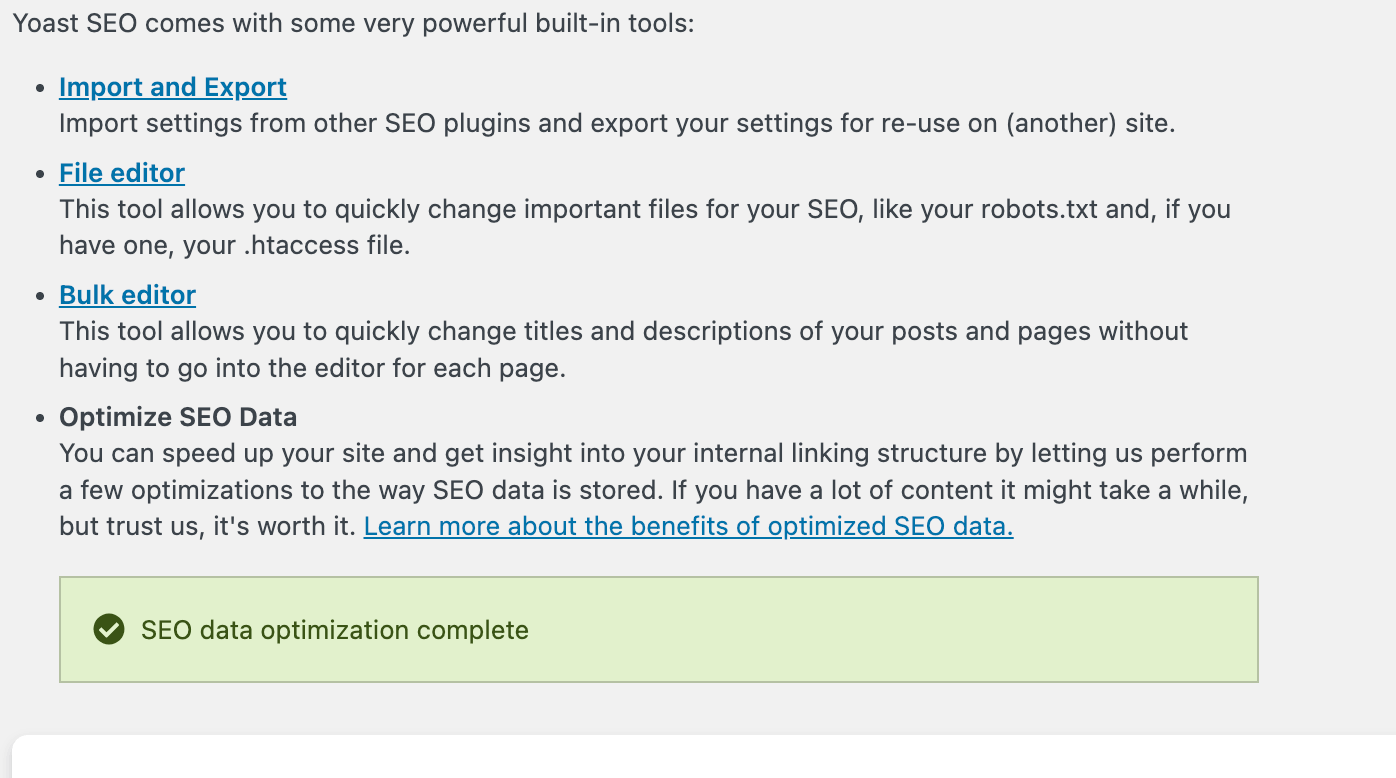
In Yoast SEO, the Tools section provides utilities that help you manage and maintain your website’s SEO settings more efficiently. These tools are designed to give you quick access to advanced options without needing technical coding skills.
The Tools section includes features that allow you to:
- Import or export SEO settings
- Edit files like robots.txt or .htaccess (if enabled)
- Perform bulk SEO actions across your content
I) Import and Export :
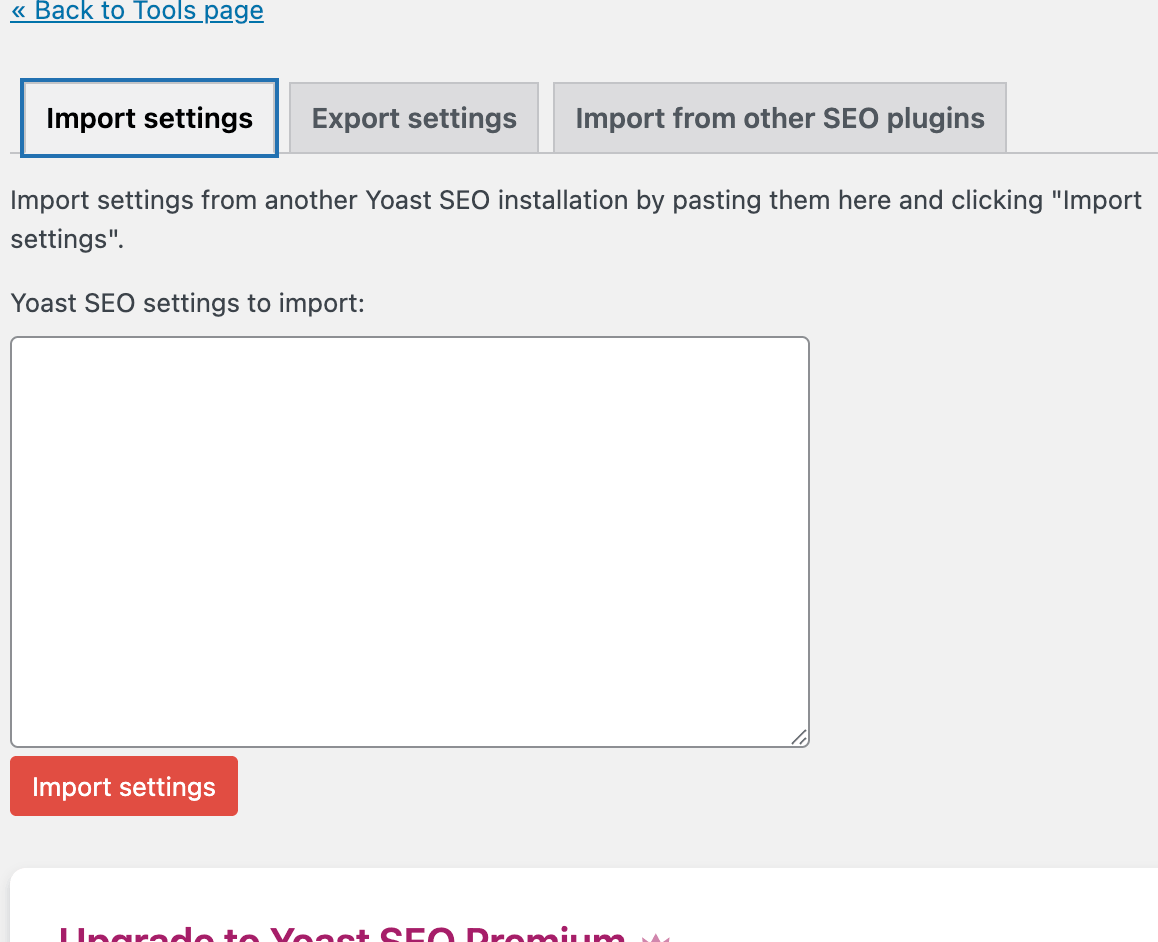
The import/export feature allows you to:
- Export your current Yoast SEO settings into a file
- Import those settings into another WordPress website
This is useful when managing multiple sites or migrating a website.
II) File Editor :
The file editor in Yoast SEO includes robots.txt and .htaccess, which are advanced settings best handled with care and mainly used by experienced users.
a) Robot.txt :
In Yoast SEO, robots.txt is a simple file that tells search engines which parts of your website they are allowed to visit and which parts they should avoid.
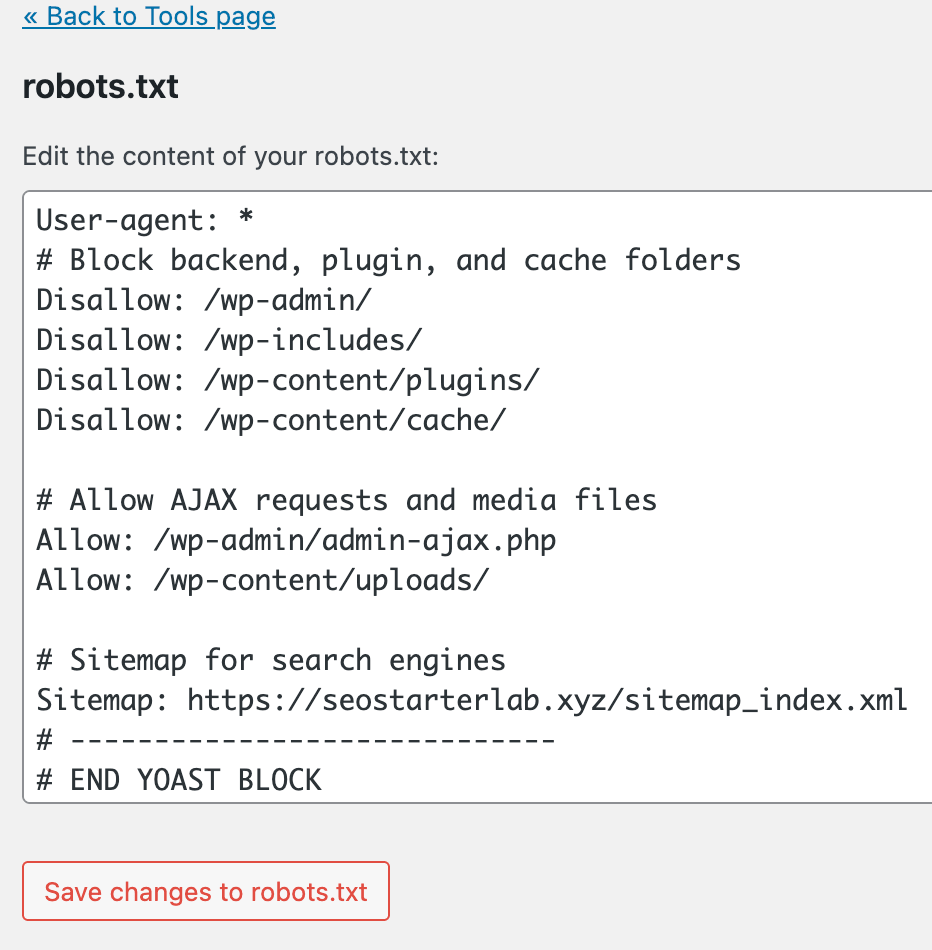
Robots.txt acts like a set of instructions for search engine bots (like Googlebot).
It helps guide crawlers on what to:
- Crawl (visit and read)
- Not crawl (ignore certain pages or folders)
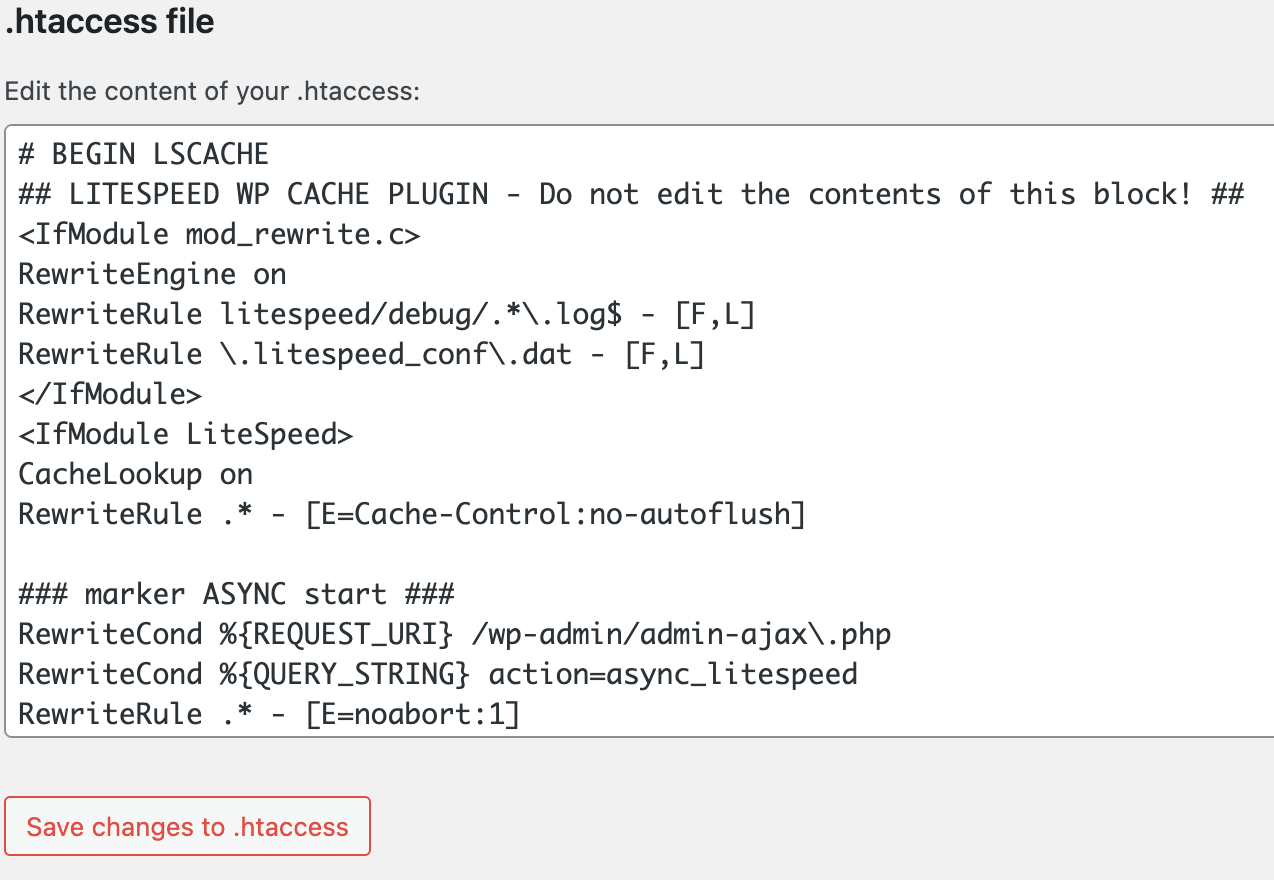
b) .htaccess :
In Yoast SEO, the .htaccess file is a server configuration file used to control how your website behaves on the server. For beginners, it is best understood as a file that helps manage website redirects, security rules, and URL handling.
The .htaccess file gives instructions to your web server (usually Apache) on how to handle requests to your website. It can control things like:
- Redirecting one URL to another
- Enabling or disabling access to certain files
- Improving site performance and security
Common uses
- 301 redirects (permanent redirects)
- Blocking unwanted access to files
- Setting up clean URLs (permalinks)
- Improving SEO-friendly URL structure
Why it is important ?
- Helps manage technical SEO settings
- Supports proper URL redirection
- Improves website security
- Ensures better user experience
Beginner note :
The .htaccess file is powerful, but small mistakes can break your website. Beginners should:
- Avoid editing it without understanding
- Always create a backup before changes
- Use tools like Yoast SEO carefully when accessing it
To learn more about how the .htaccess file works and how it affects SEO and website redirects, you can check this detailed guide from Semrush.
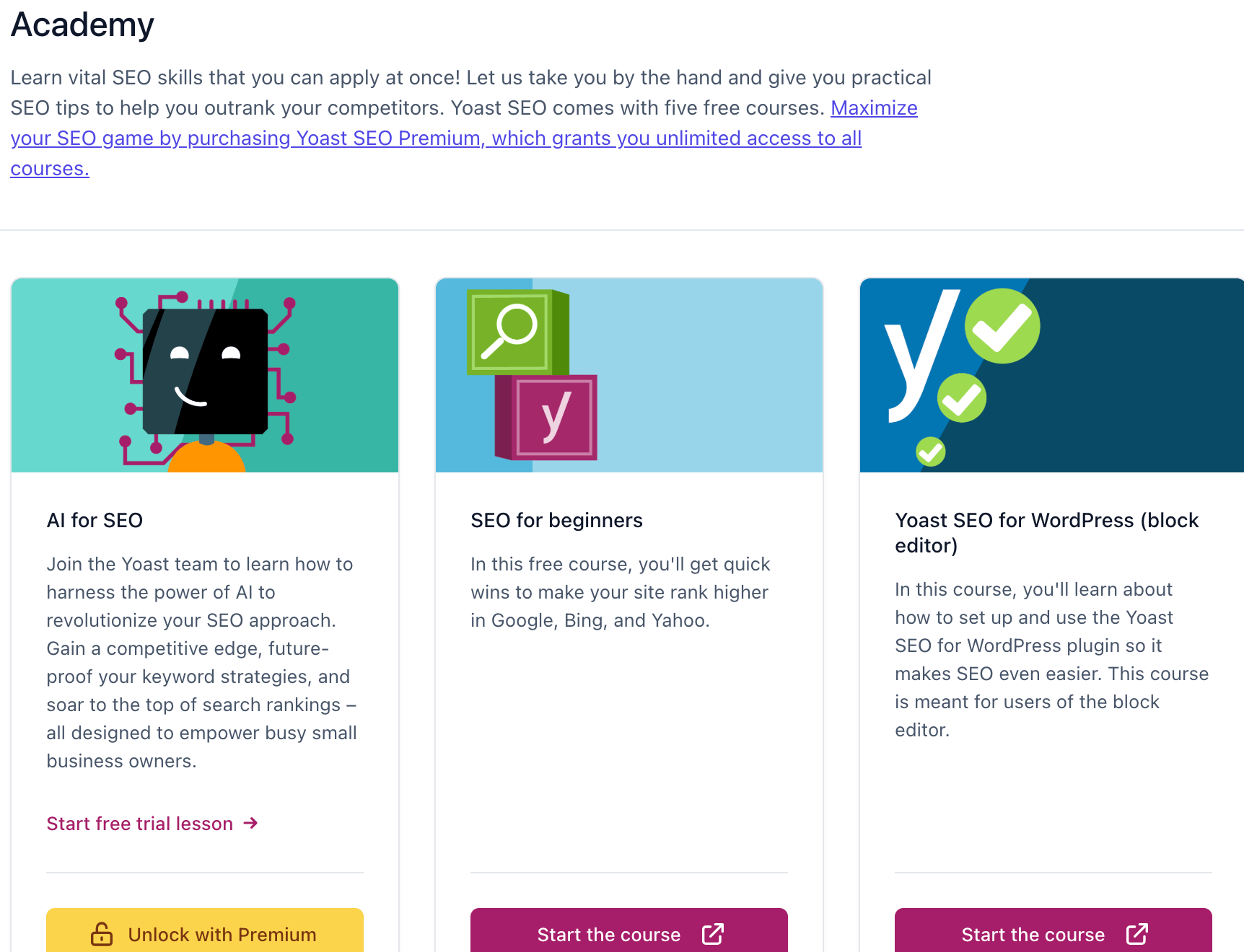
E)Academy :
In Yoast SEO, the Academy section provides learning resources to help users understand SEO and how to use the plugin effectively. It includes tutorials, courses, and guides that cover topics like keyword research, on-page SEO, content optimization, and best practices.
F) Plans :
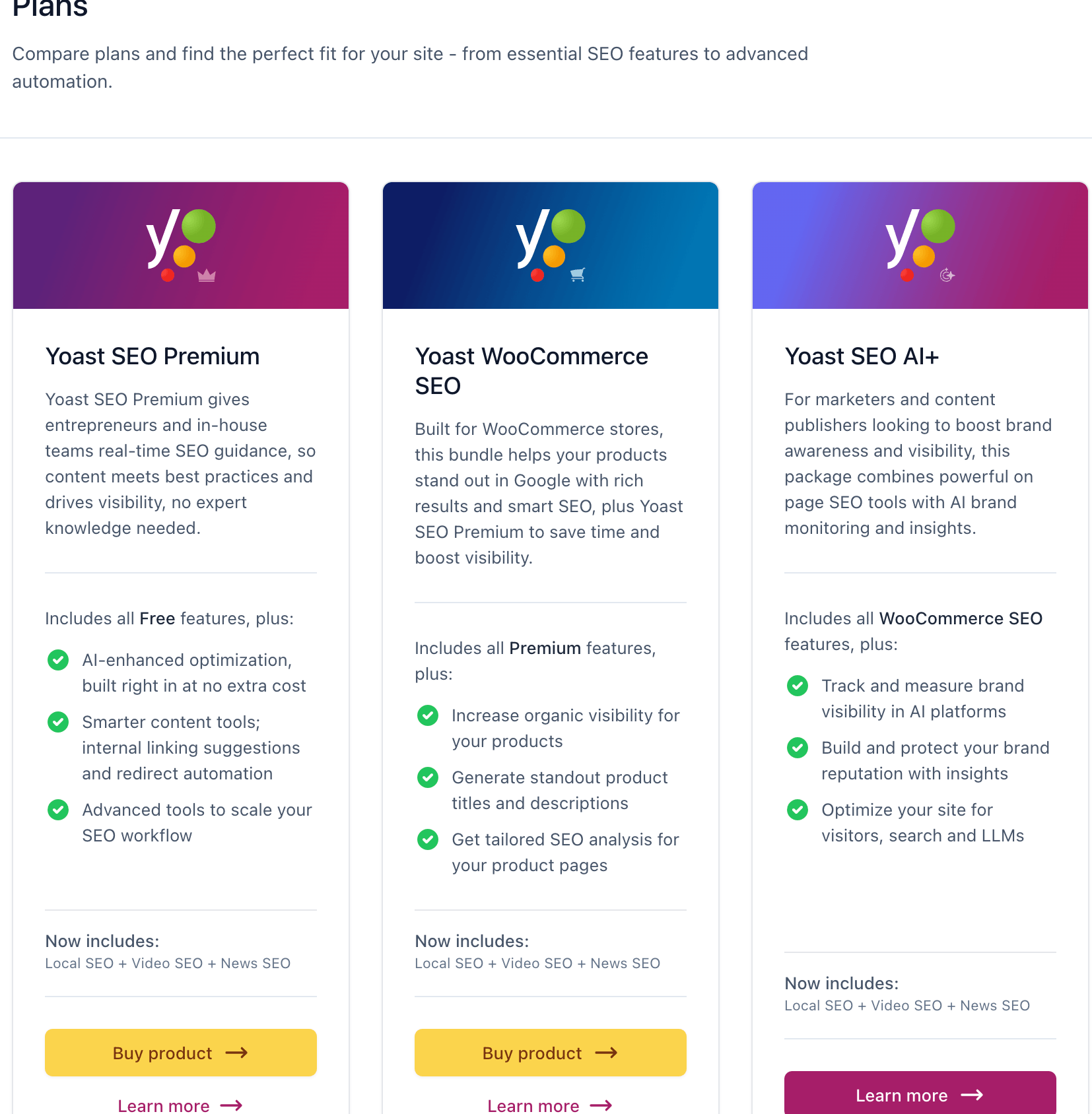
In Yoast SEO, the Plans section refers to the different pricing options and feature packages available for users. First of all, Yoast SEO offers both free and premium plans. In addition, each plan is designed to meet different needs depending on the size of the website and the level of SEO features required.
Common plan types
- Free version → Basic SEO features like meta tags, focus keyphrase, and readability analysis
- Premium version → Advanced features like multiple focus keywords, internal linking suggestions, redirects, and support
Why plans matter
First of all, Yoast SEO plans are important because they help users choose the right option based on their website needs. In addition, using the right plan in yoast seo in wordpress gives you access to advanced SEO tools that improve your site performance. Moreover, these plans are designed to support the growth of your website by offering features that scale with your business. As a result, whether you are a beginner or running a larger website, the right plan helps you optimize your SEO more effectively and achieve better results.
6. How to use Yoast SEO in WordPress ?
Yoast SEO is a popular WordPress SEO plugin that helps you optimize your website for search engines like Google. First of all, if you are learning how to use Yoast SEO in WordPress, it guides you step by step to improve your content. In addition, it helps with on-page SEO by analyzing your keywords, readability, and overall structure.
Moreover, it supports keyword optimization so you can target the right search terms effectively. As a result, you are able to write better content that is both user-friendly and SEO-friendly. Finally, using Yoast SEO consistently can improve your website visibility and increase organic traffic over time.
1.Install and Activate Yoast SEO
- Go to Plugins → Add New
- Search for “Yoast SEO”
- Click Install and then Activate
2.Configure Basic Settings
After activation, go to the Yoast setup wizard:
- Choose your site type (blog, business, etc.)
- Set your organization or personal details
- Connect social profiles if needed
This helps build your site structure and search engine visibility.
3.Optimize Each Post or Page
When writing a post:
- Scroll to the Yoast SEO box
- Add a focus keyphrase (main keyword)
- Optimize:
- SEO title
- Meta description
- Readability
Yoast will give suggestions using a traffic light system (green, orange, red).
4.Use Focus Keyphrase Properly
- Include your keyword naturally in:
- Title
- First paragraph
- Headings
- Meta description
- Avoid keyword stuffing
- Use LSI keywords (related terms) to improve relevance
5.Check SEO Analysis
Yoast provides:
- SEO analysis (keyword usage, links, etc.)
- Readability analysis (sentence length, passive voice, structure)
Follow suggestions to improve content quality.
6.Add Internal Linking
- Link to other relevant posts on your website
- Improves internal linking structure
- Helps search engines understand your content hierarchy
7.Manage Categories and Tags
- Use categories for main topics
- Use tags for specific keywords
- Keep them clean and relevant for better site organization
8.Use Advanced Settings (Optional)
- Control indexing
- Manage breadcrumbs
- Configure schema markup
- Adjust crawl optimization settings
Final Tips :
- Focus on content quality over keyword stuffing
- Write for users, not just search engines
- Keep titles clear and engaging
- Use meta descriptions to improve click-through rate (CTR)
Before using Yoast SEO, it’s important to understand how WordPress works. If you’re a beginner, check this guide on WordPress tutorials for beginners.
7. Conclusion :
In Yoast SEO, using the latest 2026 UI is a powerful way for beginners to improve their website’s visibility without needing advanced technical skills. By following the steps in this guide, you can optimize your posts and pages with proper focus keyphrases, write better meta titles and descriptions, improve readability, and structure your content in a way that search engines understand more easily.
Yoast SEO simplifies many complex on-page SEO and technical SEO tasks by giving clear suggestions and real-time feedback while you write. Features like SEO analysis, readability checks, schema markup, breadcrumbs, and internal linking suggestions help you build a strong foundation for ranking higher in search results.
If you are just starting out with WordPress, the key is consistency. First of all, you should use Yoast SEO for every post and page. In addition, you need to focus on creating valuable and helpful content for your audience. Moreover, make sure you carefully follow the recommendations provided by the plugin. As a result, using yoast seo in wordpress correctly will help you optimize your website in a structured way. Over time, this will not only improve your search engine rankings but also increase organic traffic. Finally, it will make your website look more professional, user-friendly, and ready for long-term growth.
In short, Yoast SEO is not just a plugin—it’s a beginner-friendly SEO assistant that guides you step by step to optimize your content and grow your website in 2026 and beyond.